Instances
Create an isolated VM or container on a node — the home sites live in — and manage it from the instance workspace.
An instance is an isolated environment on one of the nodes: its own filesystem, network, and resource limits. It's where sites actually run. By default an instance is a KVM virtual machine (safe for untrusted content); a lighter container is a trusted-only option.
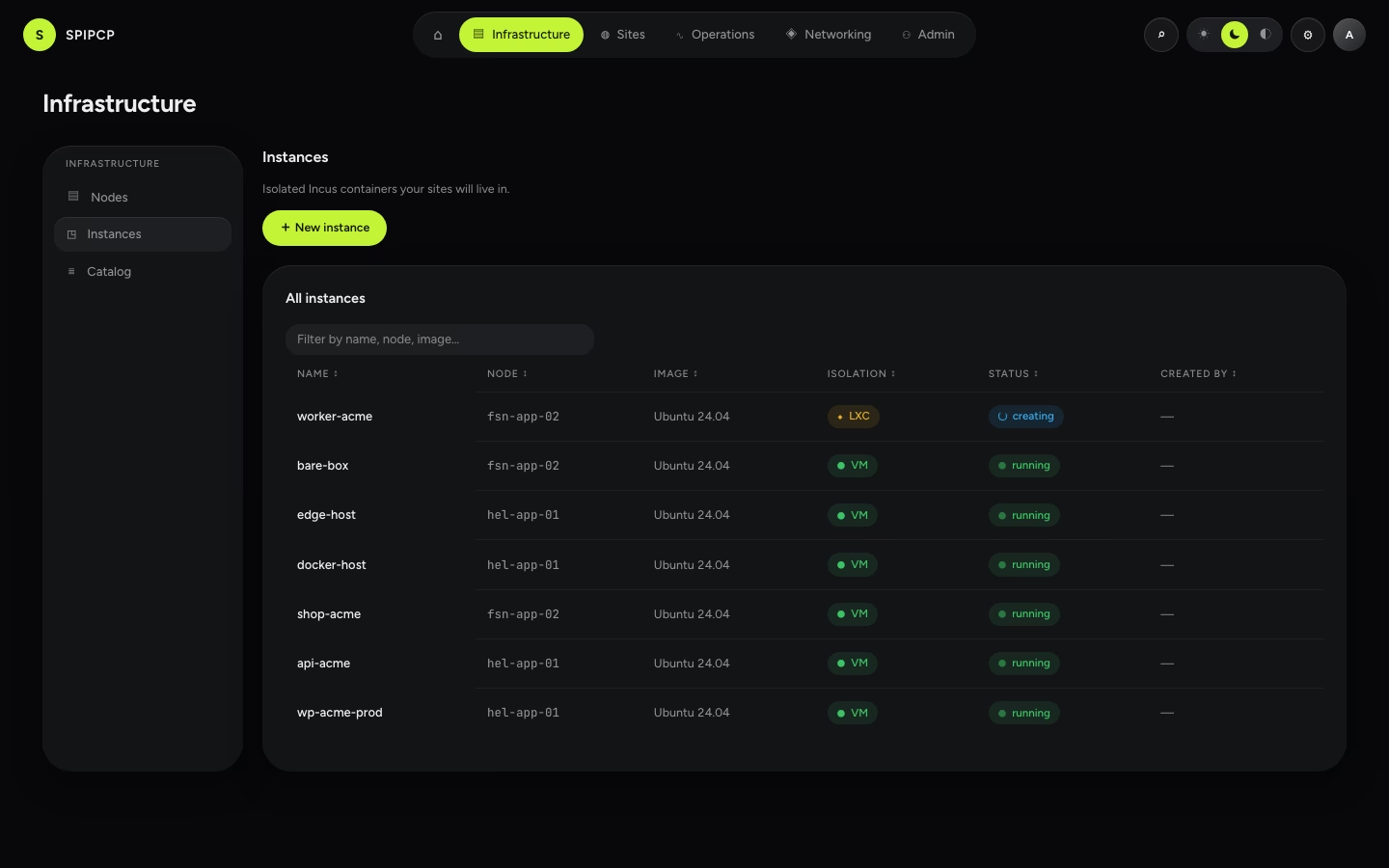
An instance hosts many sites — each with its own directory, port, and service, added from the new-site wizard and listed (with ports) on the instance's Sites tab. See Many sites, one instance for when to share an instance and when to split, and where the isolation boundary sits.
Creating an instance
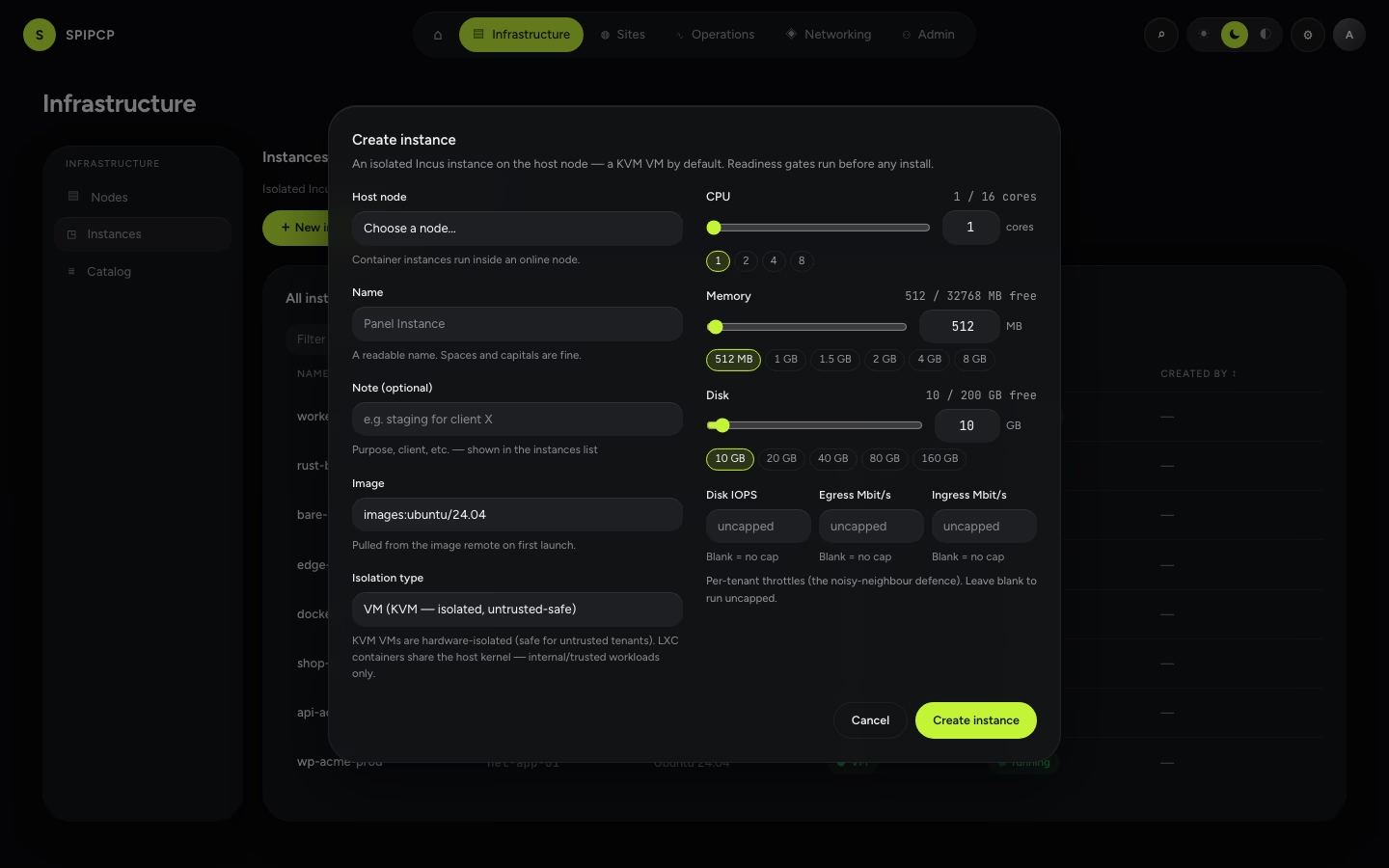
From Instances → New instance (or the Create instance button on a node):
Pick the host node. Choose which online node runs it. (When starting from a node's page, it's pre-selected.)
Choose the type. VM (the default — hardware-isolated, safe for untrusted tenants) or container (lighter, trusted-only). The default follows the node's topology class.
Say what it will host. One choice — WordPress on nginx, WordPress on OpenLiteSpeed, PHP, Node, Python, Go, Rust, Docker, or Empty to decide later. It installs that stack as soon as the instance is running, and it is what every later site launch reads: a site inherits the instance's web server and the versions installed on it rather than choosing its own. Empty installs nothing and leaves every decision to the first site launch.
Size it. Name it, pick the base image (Ubuntu 24.04 by default), and set CPU / memory / disk limits — all editable later. The sliders open on what the chosen workload actually wants, with the arithmetic stated: 2 GB suits one WordPress site, and each additional site on the same instance wants about 512 MB more. A smaller box is still allowed; the panel recommends and never resizes.
Create. The agent builds the instance on the node, then runs readiness checks, landing in the instance workspace.
The stack belongs to the instance, not to the site
Sites on one instance share its kernel, its packages and its ports, so the web server and the PHP version are properties of the box. An instance created to host WordPress on OpenLiteSpeed runs OpenLiteSpeed for every site on it, and the new-site form states that rather than offering a choice it could not honour. Changing it afterwards is a migration, not a setting — create another instance.
Readiness checks catch the usual suspects
Before anything is installed, checks run inside the instance — network interface, DHCP lease, DNS, and whether the package mirror is reachable — and a failure explains how to fix it, so a silent install error is never chased down blind.
The instance workspace tabs are: Overview · Sites · Network · Terminal · Services · Defaults · History. Two of them group related areas behind an inner toggle — Services holds the service catalog and Databases, and History holds Snapshots and the Reconcile log.
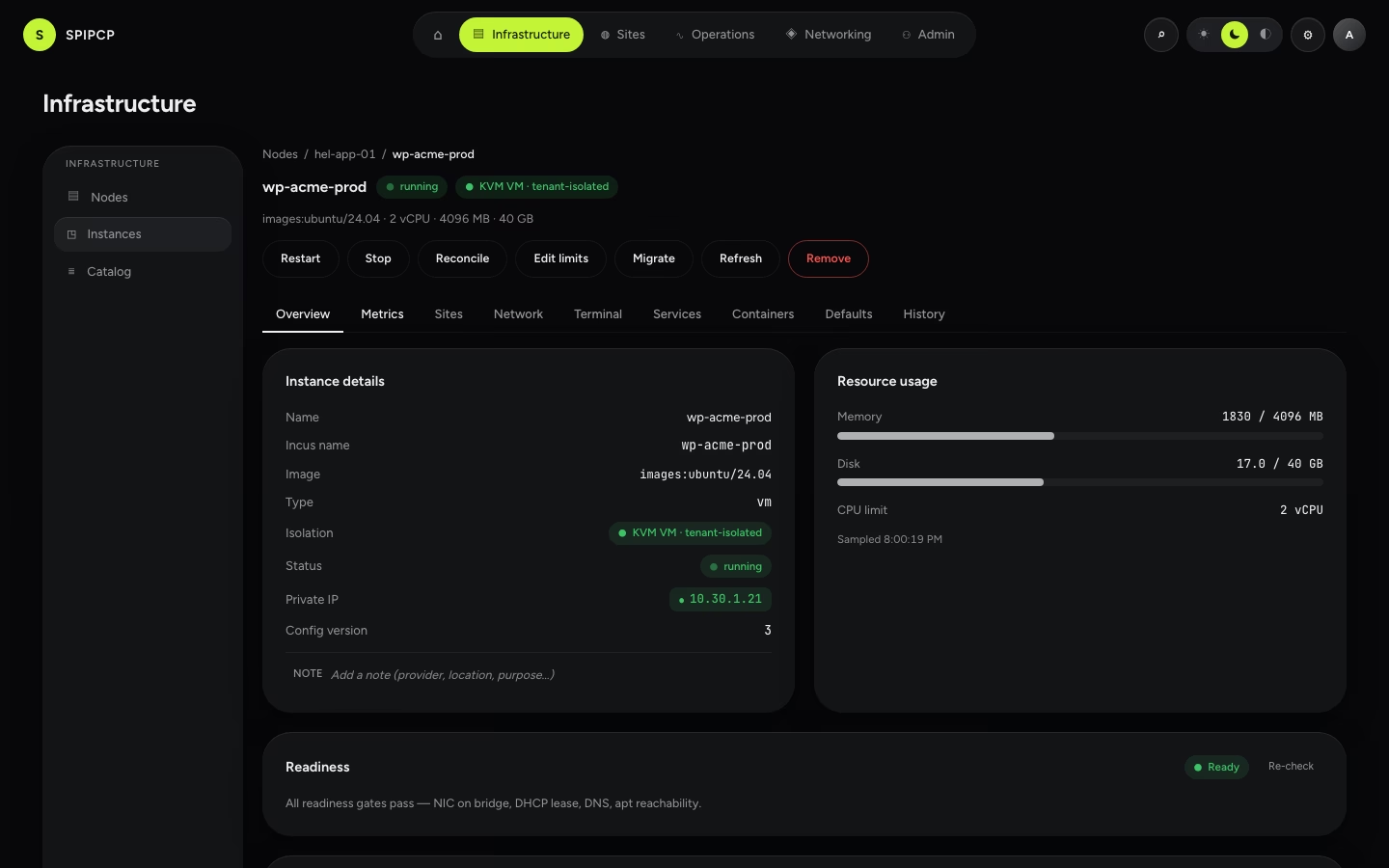
Overview
The instance's status and readiness report, live usage bars for memory and disk, and its CPU limit.
Renaming an instance
An instance carries two names, and only one of them moves.
The display name is what the panel shows. It can be changed at any time — the pencil beside the name in the instance header, or beside Name on the Overview tab, opens a rename dialog.
The Incus name, listed directly below it, is the container's identity on the host: every command the agent runs addresses the instance by that name, and sites record it as part of their on-disk location. It is fixed at creation and a rename leaves it exactly as it is. So renaming changes the label and nothing else — the instance keeps running throughout, and no site is disturbed.
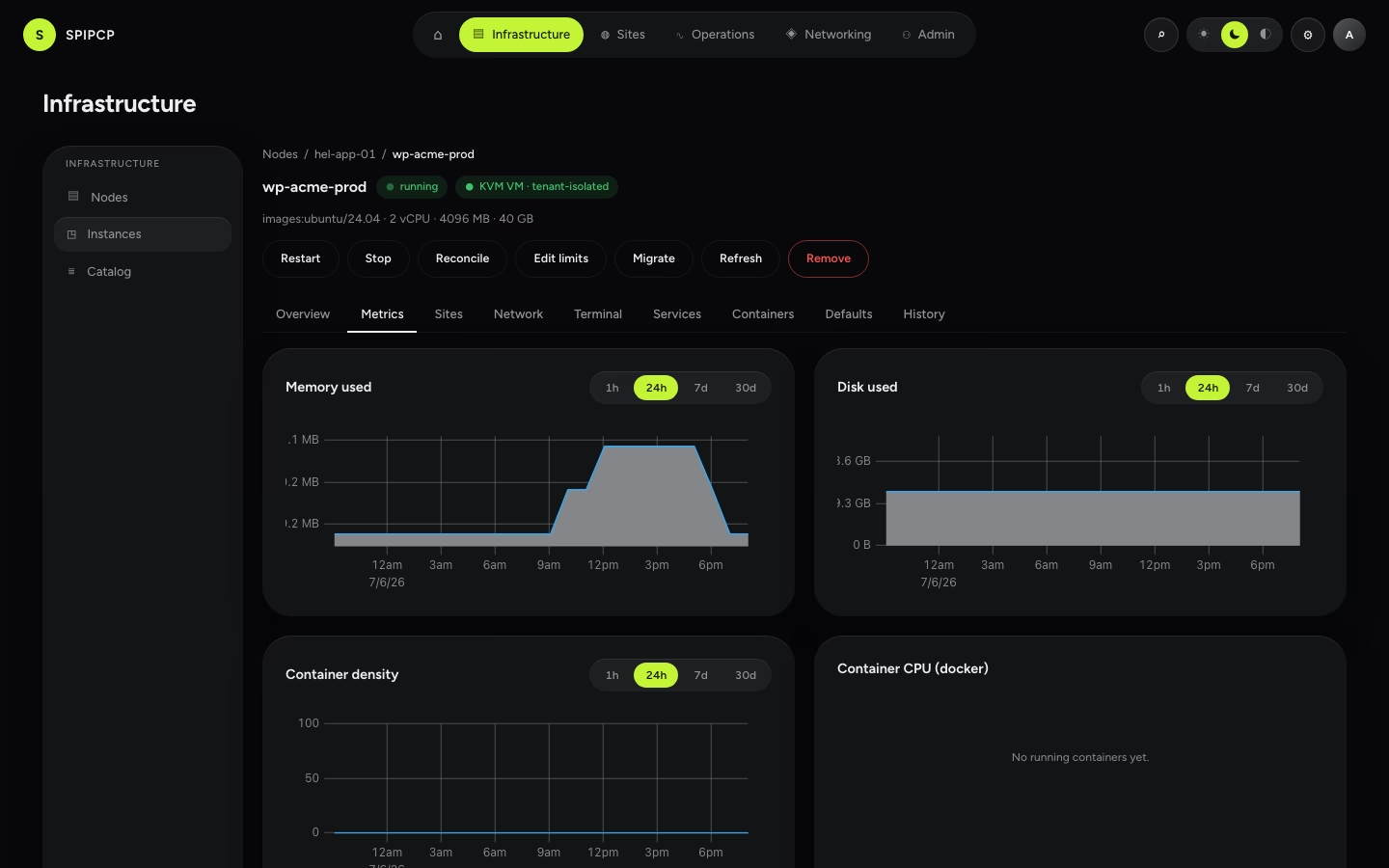
Metrics
Memory and disk trends, a container-density chart (how many containers have been running over time), and a readiness-history strip. For a docker-hosting instance, a per-container CPU breakdown shows which app is using what.
Sites
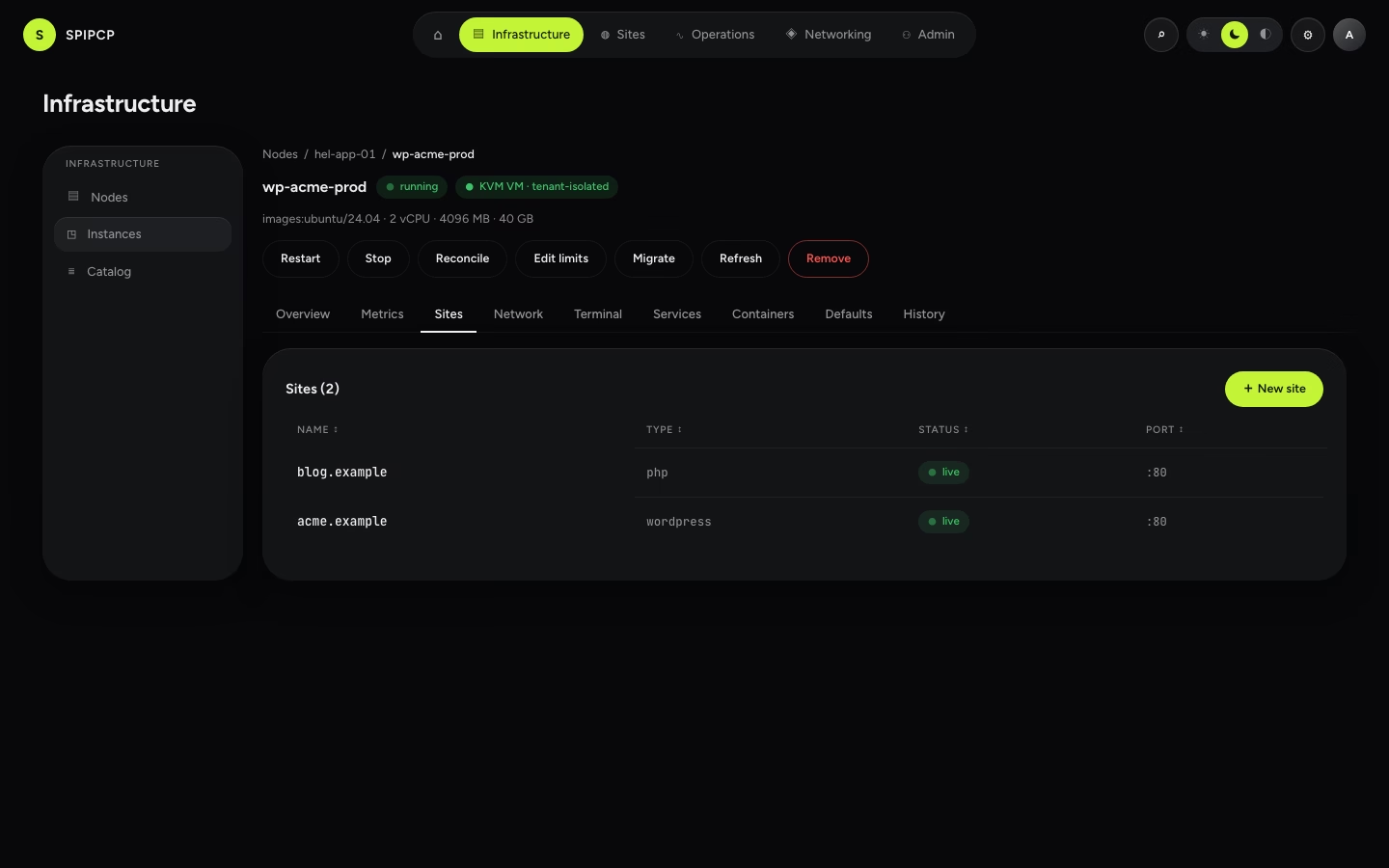
The sites hosted in this instance, with a jump into each — and a shortcut to launch a new one here.
Network
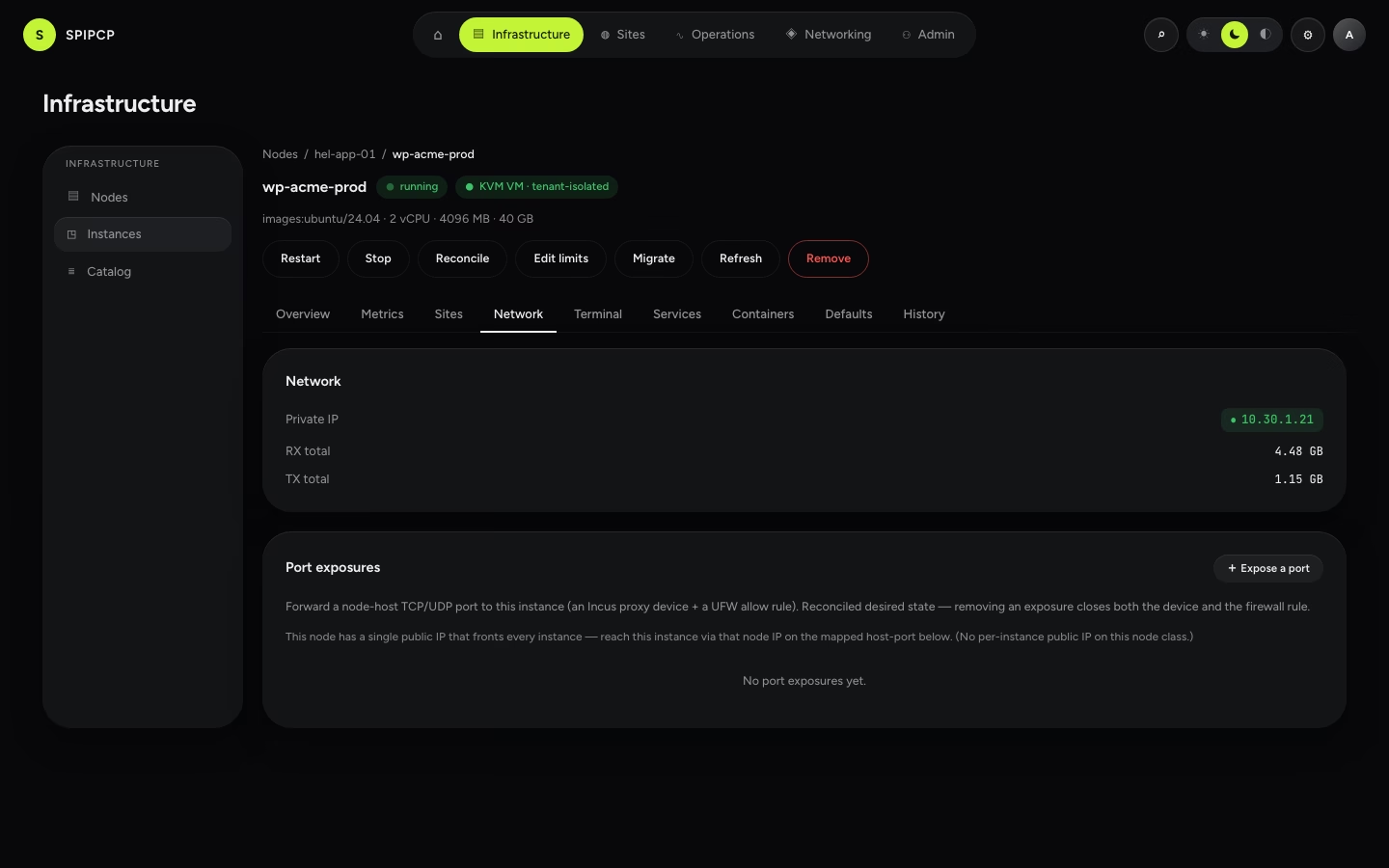
The instance's private IP and traffic totals, and how it's reached. On a multi-IP node this is where a routed public IP can be assigned; on single-IP nodes traffic comes through the shared NAT lane.
Terminal
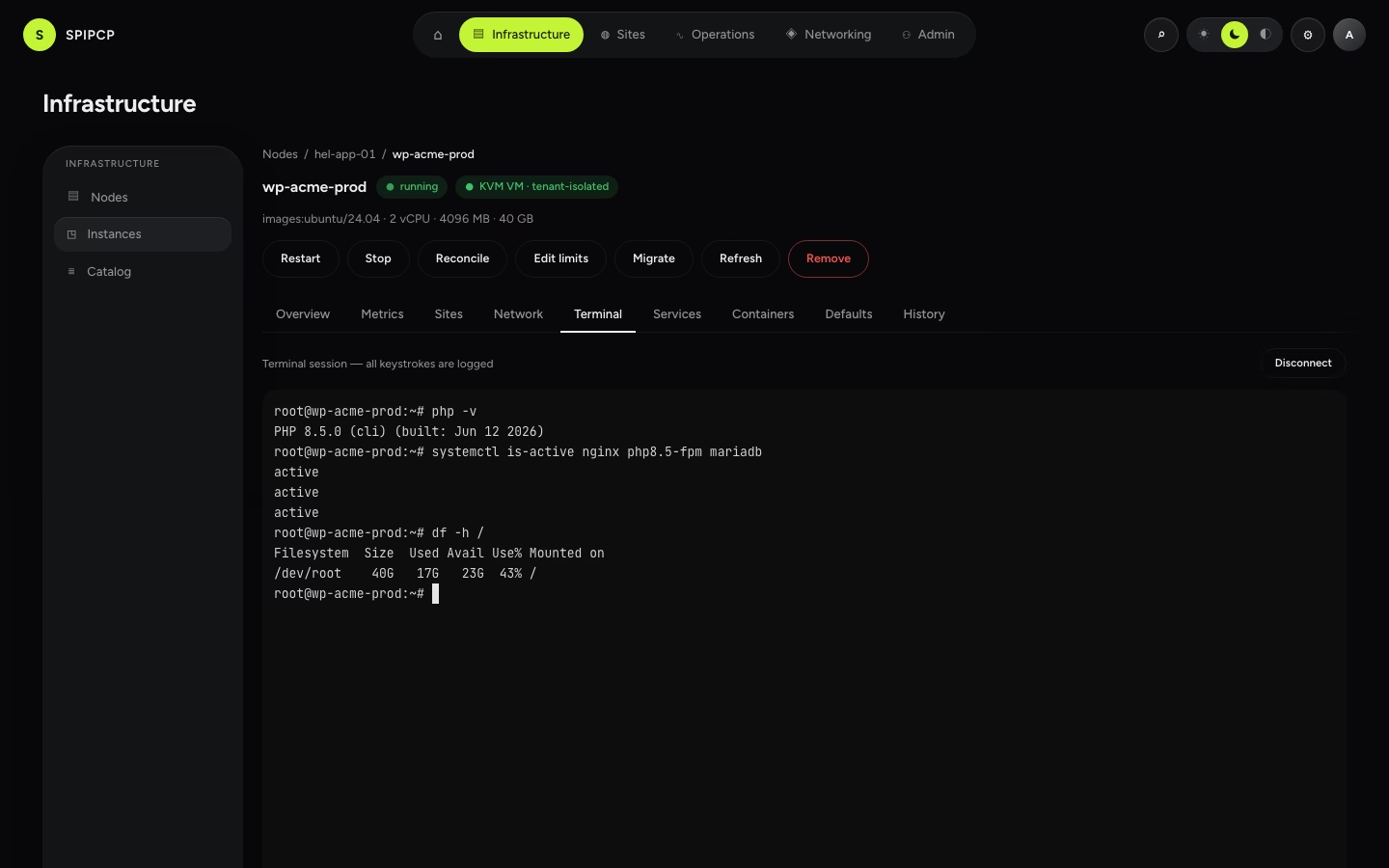
Opens a real terminal straight into the running instance, as root. It's admin-only and audited — operators don't see the tab, and can't open a session. (Formerly "Console".)
“incus daemon didn't respond”?
If the terminal opens but shows a "Failed to begin transaction" or similar error and ends, that's
the node's container daemon (incus) not responding — not a login problem. The panel points at the
node; on the node, check systemctl status incus and df -h, and systemctl restart incus clears a
wedged daemon.
Services
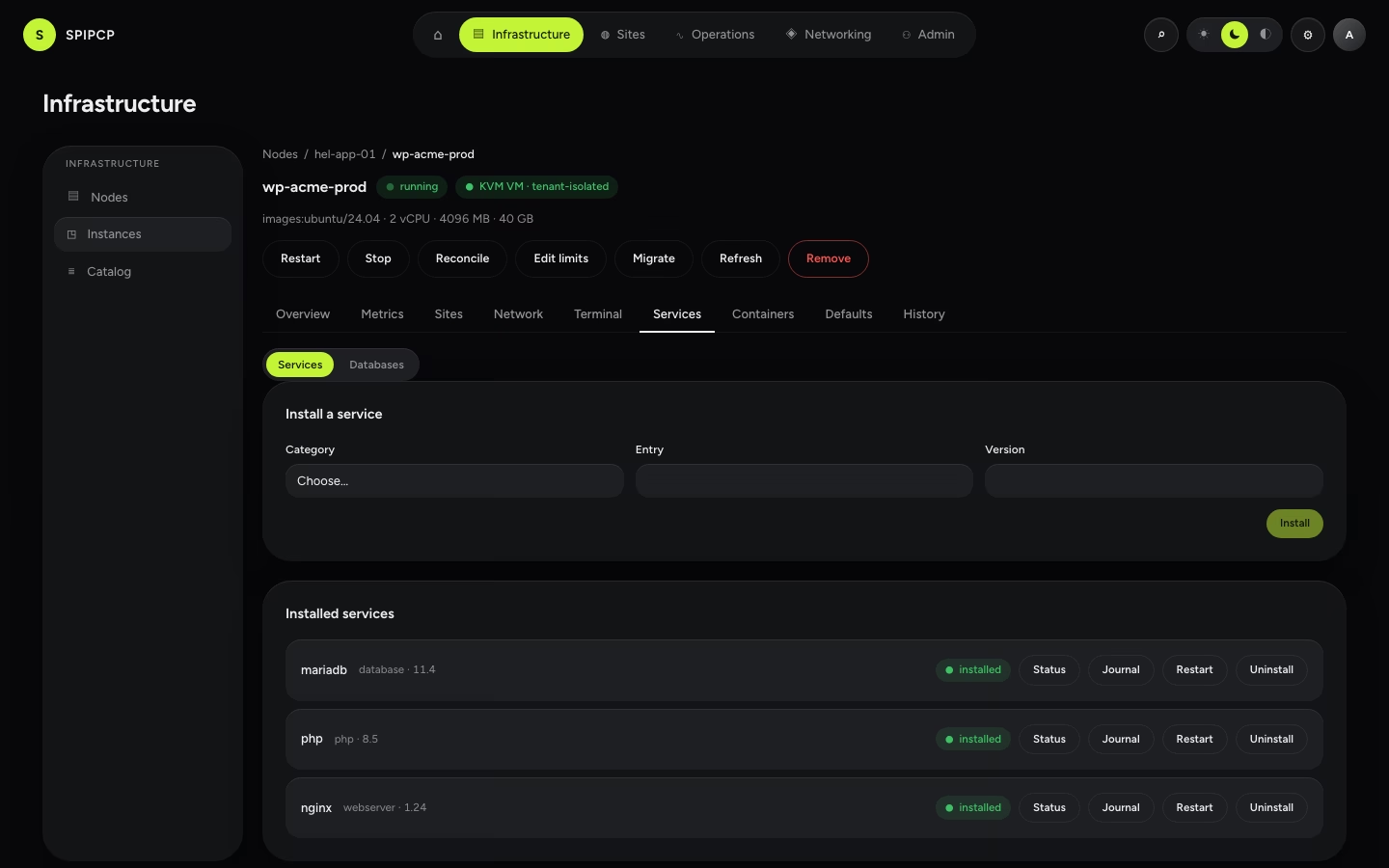
The stack and data engines installed inside the instance, with an inner toggle between Services and Databases.
Services is the stack from the service catalog — web server, PHP, database engines, and so on. Install what a site needs, or check what's already there.
Databases lists the databases on the instance, each with its engine, name, and user. A site can create its database here as part of launch, and a query console can be opened against any of them.
→ See everything installable: What can be installed.
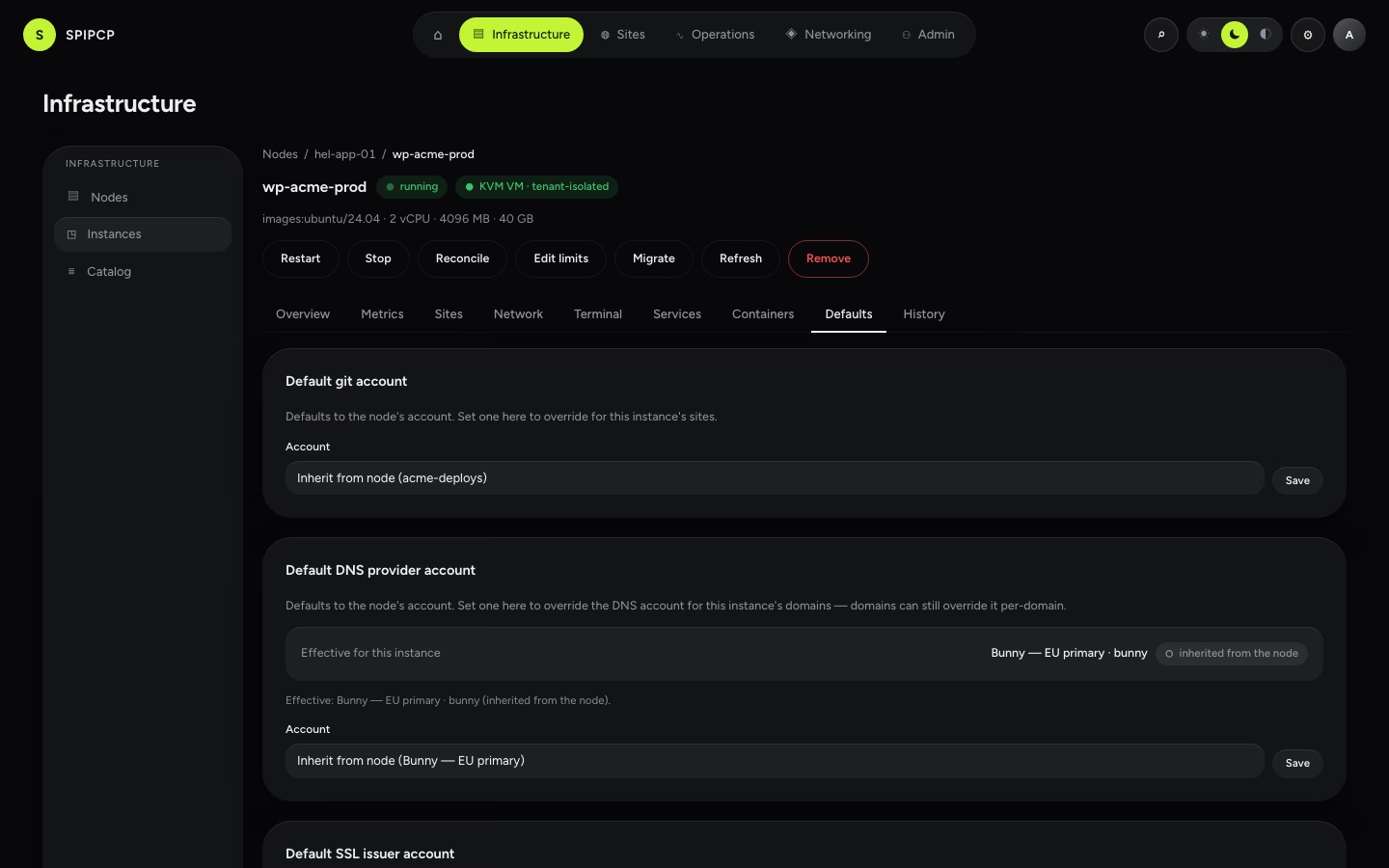
Defaults
The instance's cascade defaults — the git account, DNS provider, and SSL issuer — inherited from the node and passed down to its sites unless overridden.
History
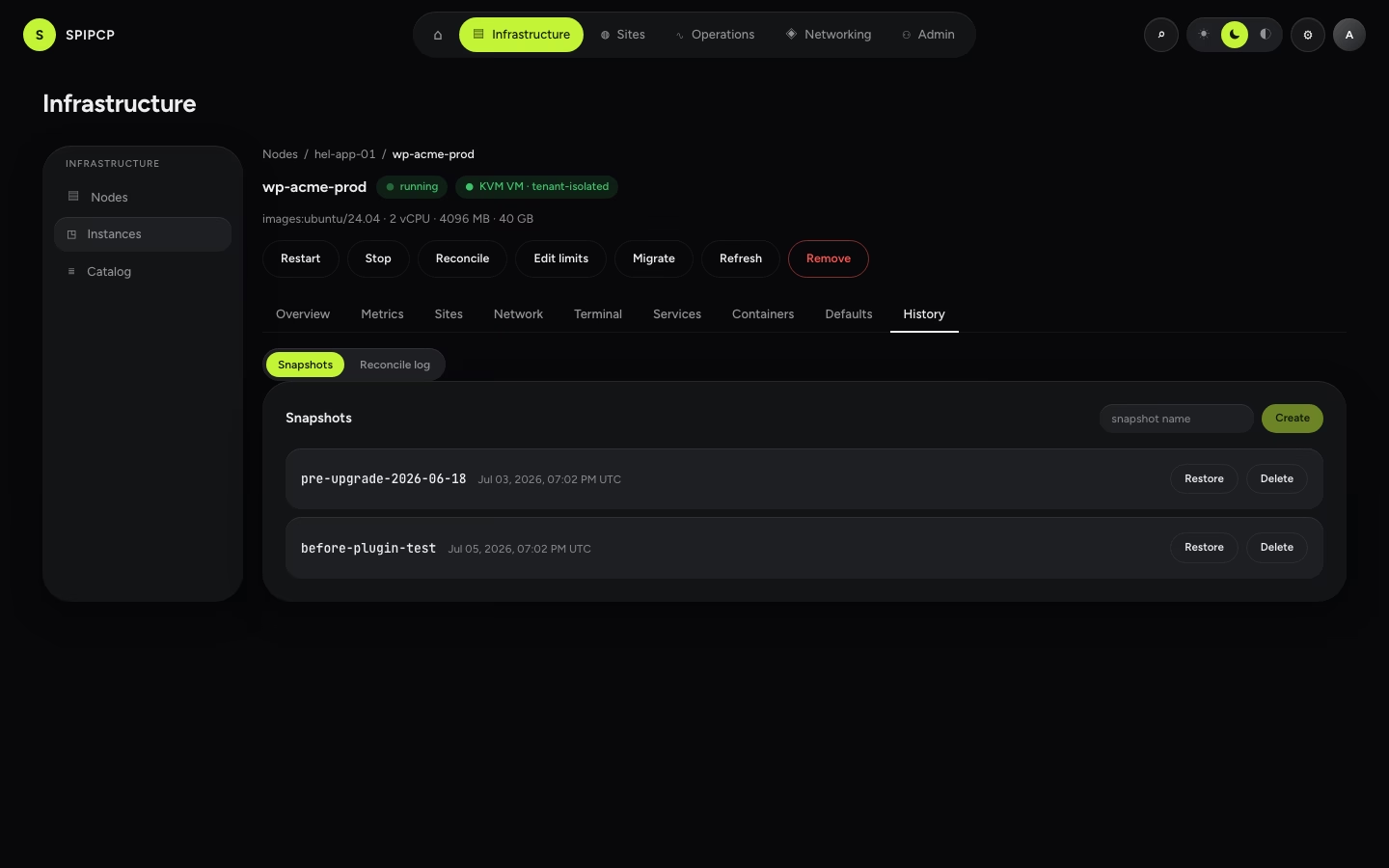
The instance's point-in-time state, with an inner toggle between Snapshots and the Reconcile log.
Snapshots allows taking a named snapshot of the whole instance and restoring it later — a quick checkpoint before a risky change: snapshot, change, then roll back if it goes wrong. Reconcile log lists every reconcile run against the instance, re-openable, showing exactly what changed.
How it works
Resource limits, networking, and the installed stack are all applied by the agent through reconcile — the panel decides, the agent acts, and it's safe to re-run. An instance is the boundary tenants sit behind; see Tenant isolation for why instances default to a VM and the network controls that keep tenants apart (no seeing each other, no reaching the panel, no address spoofing).
Re-adopt workloads
When a node is reconnected to a panel that has lost its records — a database reset, a restore from an older backup, or a move to a fresh panel — discover what's still running on the box and bring those instances and sites back under management.
Many sites, one instance
An instance hosts many sites — each with its own directory, port, and service — and the operator chooses whether a new site joins an existing instance or gets a fresh one.