Environment editor
Edit a site's environment in a real .env code editor (line numbers, syntax highlighting) or a key/value table — comments are saved, and how the variables reach the app (wp-config, process env) depends on the site type.
Every site has an Environment tab. The site's predefined keys keep their labels, validation, and
secret handling, and any extra key can be added alongside them. Edit it as raw .env text (a real
code editor — line numbers, syntax highlighting) or as a key/value table, copy or download
the file, and apply changes live.
Where the environment actually goes
The Environment tab is the one source of truth for a site's variables. They're stored in the
panel database (secrets encrypted) and injected into the site at launch. What happens with them
depends on the site type — there isn't always a literal .env file on the server:
| Site type | How the variables are consumed |
|---|---|
| WordPress | They're written into a hardened wp-config.php (DB constants, the per-install salts). WordPress does not use a .env file — so none exists in the docroot. |
| Node | Injected as process environment for the app, and wired into its systemd unit. The app reads them via process.env. |
| Astro / static | A built/static site has no runtime environment. Any build-time variables belong in the deploy pipeline, not here. |
This is not the panel's own .env
The .env in the project root (with DATABASE_URL, MASTER_KEY, SMTP, the tunnel settings) is
the panel server's config — completely separate from a site's environment. The Environment tab
never touches it.
So "edit a site's .env" means edit the site's variable set — the tab shows it in .env syntax
because that's the familiar shape, even when the destination is wp-config.php or process env rather
than a file on disk.
Predefined keys and extras
- Predefined keys — the variables the site type declares come with their label, whether they're required, and whether they're secret (masked, stored encrypted). These are the guided fields.
- Extras — keys the site type doesn't declare can be added. Extra keys are still validated
as
SCREAMING_SNAKE_CASE. This is the "one more variable" path.
Secret values are stored encrypted
A variable marked secret is masked in the UI and stored encrypted — never plaintext at rest. Non-secret values are stored as-is so they're easy to read back.
Two views: .env and Table
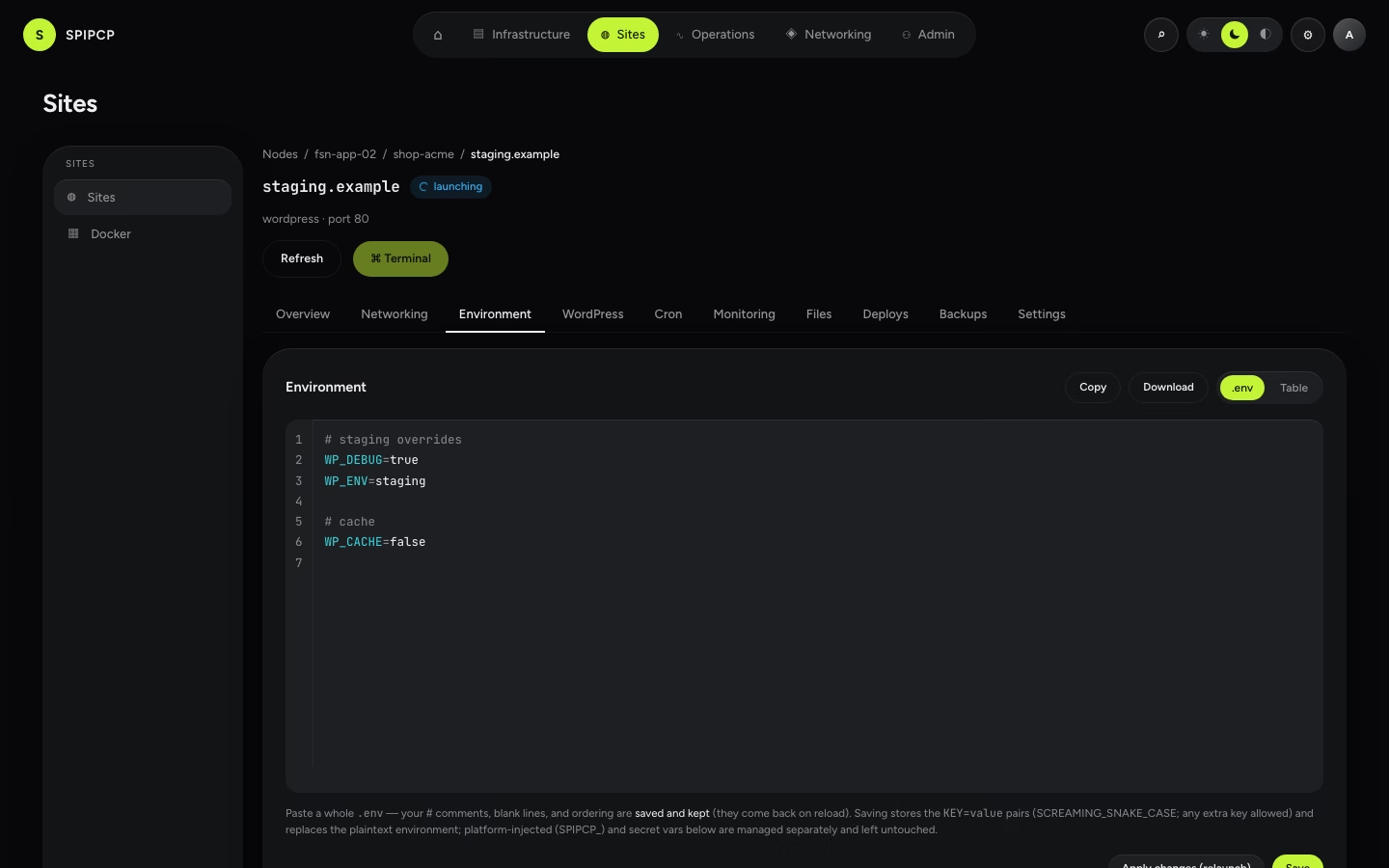
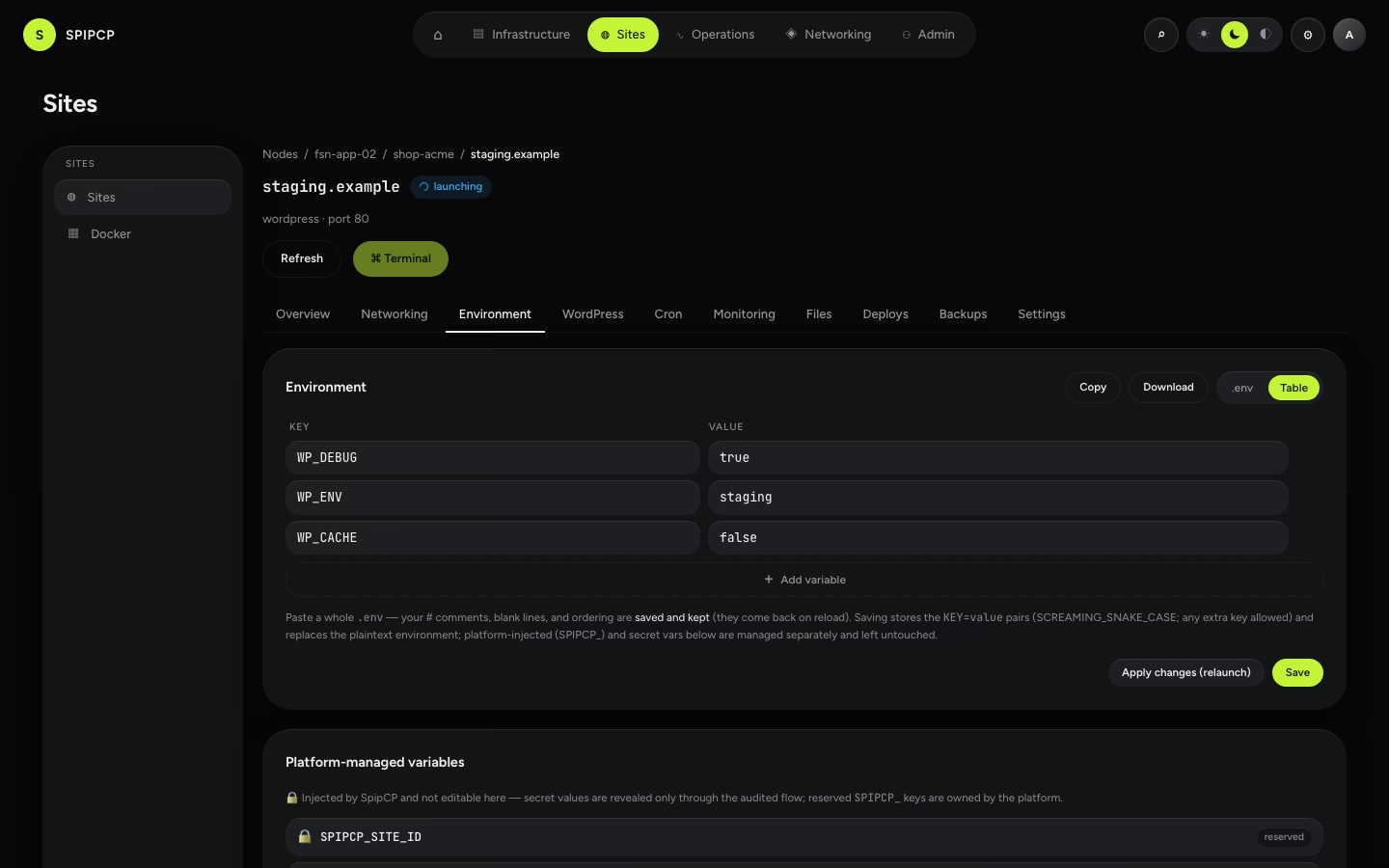
A segmented control switches between two views of the same file. The .env view is the default and the source of truth:
- .env — a proper code editor for the whole file: line numbers and live syntax highlighting
(keys, the
=, and#comments each coloured), in both light and dark themes. Type or paste an entire.env(e.g. straight out of VS Code) and save it in one go. Copy/paste, multi-select, select-all, and undo all work, and Tab indents rather than leaving the field.
- Table — an aligned key/value grid built from the
.envtext, with add/remove rows. Predefined keys show their label inline; extra rows are freeSCREAMING_SNAKE_CASEpairs. Editing a row rewrites just that line of the underlying.env, so anything around it stays put.
Comments and blank lines are saved
# comments, blank lines, and custom ordering are preserved in the .env view — handy when
pasting a documented file. They survive editing (including flipping to Table and back),
and they persist: the raw .env text is saved and comes back on reload, so a note left
("# this points at the staging DB") is still there next time.
SpipCP saves both the KEY=value pairs the site actually launches with and the annotated raw text,
and reconciles them on load so a stale secret is never shown.
Saving writes the whole set at once and re-validates every key (SCREAMING_SNAKE_CASE; reserved
SPIPCP_ keys refused), so an invalid key is reported inline rather than silently written.
Save vs. apply
Saving and applying are two steps, on purpose:
- Save stages the new values in the panel. Nothing inside the running instance has changed yet.
- Apply changes enqueues a relaunch/reconcile so the site actually picks up the new environment.
Apply is honest
"Apply" uses the same relaunch a normal redeploy uses — not a fake in-place write. So a change takes effect exactly the way a deploy would, and the site briefly relaunches to pick it up.
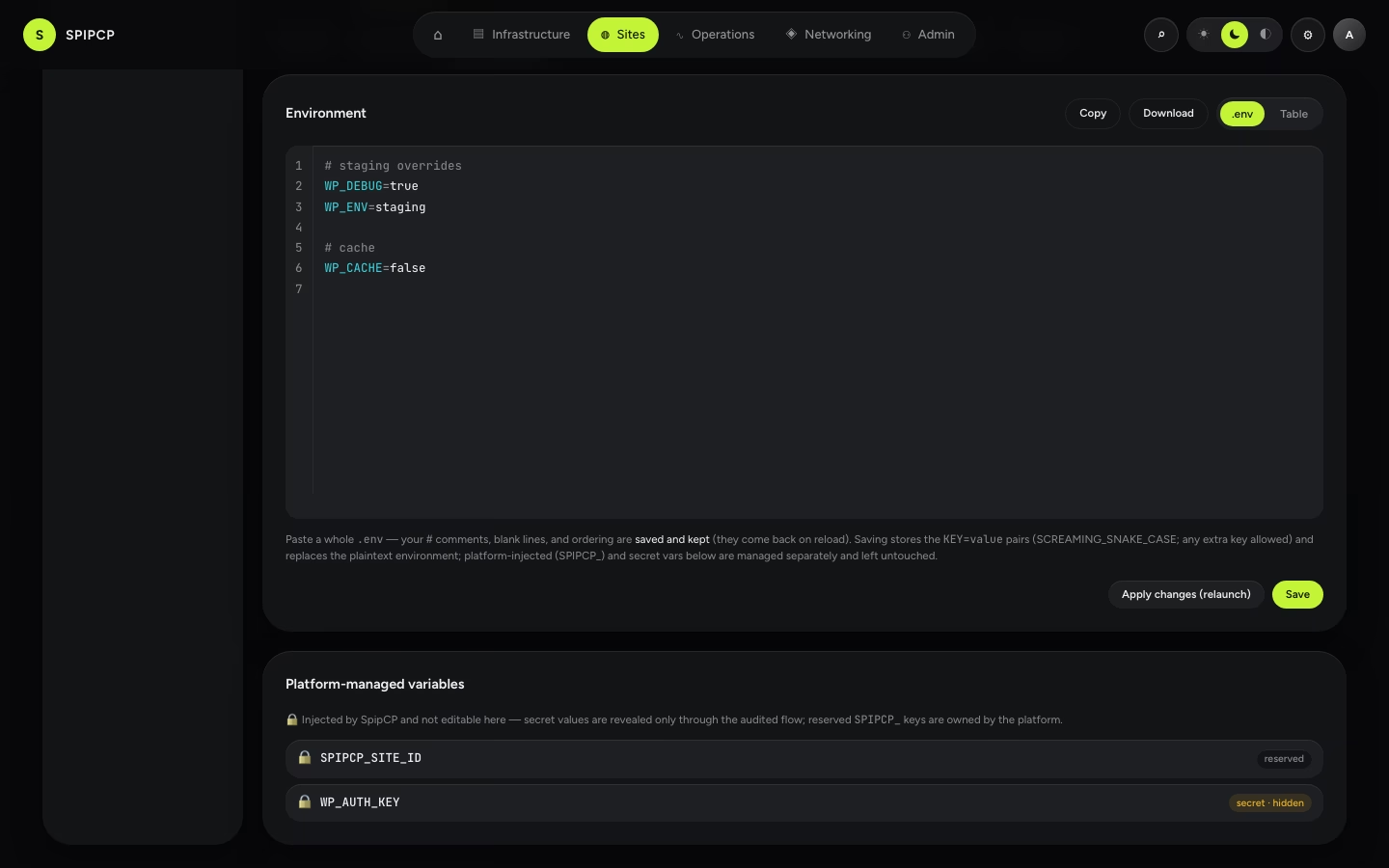
Platform-managed variables
Below the editor, a separate locked card lists the variables the editor must never touch:
- Secret values — masked and revealed only through the audited reveal flow.
- Reserved
SPIPCP_keys — injected and owned by the platform (the DB engine, the site owner password, and so on).
These are shown for visibility but can't be edited here, and saving leaves them
untouched — so a whole .env can be pasted over the editable vars without clobbering a secret or
a platform-injected key.
Copy & download
- Copy drops the current editable
.envon the clipboard — handy for pasting into a deploy pipeline or another site. - Download saves it as a
.envfile: a client-side snapshot to keep before a risky edit, or hand off alongside the site's credentials.
Both reflect whichever view is active, so they always match what would be saved.
Next steps
- Git deploys — the Deploys tab the Environment tab sits beside.
- Site database & handoff — credentials that often live in the same
.env. - Blueprints — where a site's contract keys are declared.
Site database & handoff
Create a database alongside a site on an installed engine, owned by the site owner — then hand the endpoint, owner login, and database credentials to whoever runs the site.
Docker site type
A site type that runs a containerized app from a compose file inside an instance — each app with its own directory, port, and route — served and managed like any other site.