Docker site type
A site type that runs a containerized app from a compose file inside an instance — each app with its own directory, port, and route — served and managed like any other site.
The docker (compose) site type runs a containerized app from a docker-compose.yml inside an
instance, served through the same domain → route → port → SSL chain as every other site. It's a
peer of WordPress / PHP / static / Node sites, and it's per-app: an instance hosts many
Docker apps, each with its own compose directory, published port, compose project, and route.
Many Docker apps per instance
A Docker app is a site. An instance hosts many of them, each with its own compose directory
(/srv/docker/<app>), its own published port (not a shared 8080), its own compose project,
and its own route. Two Docker apps in one instance sit side by side and never collide — just like
two Node apps. Once running, see and control them all from the
Docker management plane.
What it is
The Docker type works like every other site type — same wizard, same validation, same launch flow. The only difference is its runtime: a container, rather than software installed on the host. A Docker app is created from the new-site wizard like any other type, and it gets a served port, a domain, and SSL the same way.
How it works
Launching a Docker site runs these steps inside the instance:
- Install docker — only if it's not already there, then start it. Docker isn't a catalog service; it's installed as part of the launch (the same way the Node type installs its runtime).
- Write the per-app compose — a
docker-compose.ymlplus a starter webroot under the app's own directory/srv/docker/<app>(where<app>is the site's slug). Never a shared directory. - Bring the stack up — run
docker compose up -dunder the app's own compose project, so two Docker apps in one instance never share state and each container is clearly attributed to its site. The site's environment plus its served port fill in the compose file's${VAR}values. - Wait and smoke-test — poll the published port until it answers, then check it. A failed check
leaves the site
failedwith a remedy, never green — the same rule as every type.
How the port reaches the web
The compose service publishes its container port on the instance at the site's served port — allocated the same way a Node/PHP/static site gets one. Once a domain is attached, the node's reverse proxy (Caddy) routes the hostname to that port, exactly as it does for a Node app. Two Docker apps get two ports and two routes; nothing about routing is docker-specific.
Editing the compose file (the Compose tab)
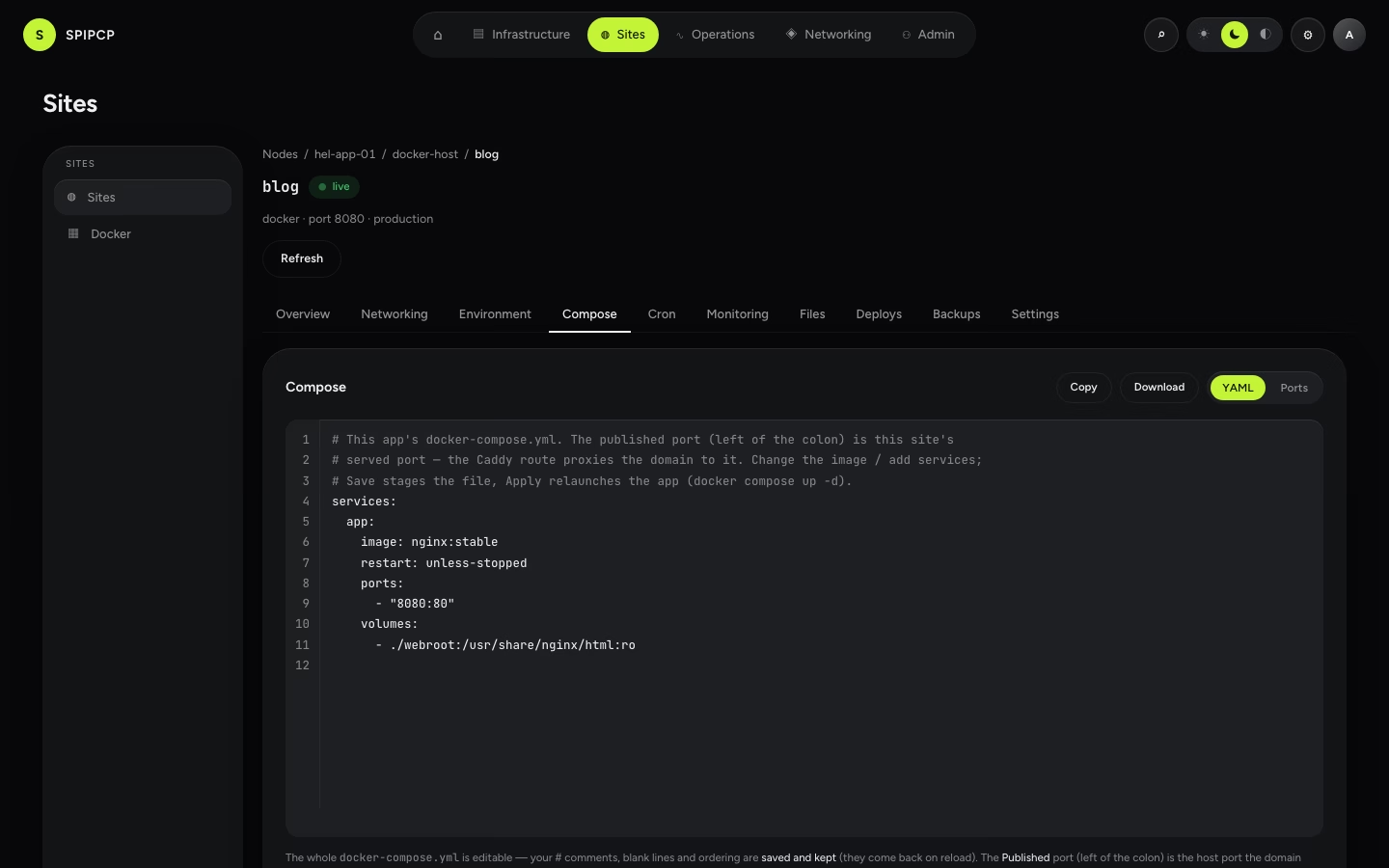
A Docker site gets a Compose tab (right after Environment) that edits its docker-compose.yml in
place — the same way the Environment editor works: the raw file is the
source of truth, a table flips on top, and a two-step Save → Apply stages then relaunches.
- Raw is the source of truth. The whole
docker-compose.yml— its#comments, blank lines, and ordering — is the editable text, and it's saved and kept (it comes back on reload). Paste a whole file in the YAML view; nothing is rewritten or reordered behind the scenes. - The table flips on top. The Ports view shows a per-service table (service, image, container port, published port, restart) built from that text. Editing a service's published port in the table changes only that one line — every other line, comment, and the container port stay put. Switching between YAML and Ports never loses a comment.
- Two-step Save → Apply. Save stages the file. Apply changes relaunches the app so the edited compose lands in the instance. Just like the env editor: nothing changes until Apply runs.
- Port-collision guard. Each port on an instance must be unique, so Save refuses a published
port another site on the same instance already uses, with a clear
port N is taken by site "X"message — before a relaunch could fail. Pick a free port and Save again.
Read-only without manage permission
Viewing the Compose tab needs the sites view permission; editing (Save / Apply) needs the
sites manage permission (admin-only) — the same grants as the environment editor. The tab shows
only for docker-type sites.
The app's directory, project, and port
The Compose tab names all three at the top of the editor, each one copyable:
| Fact | What it is |
|---|---|
| App directory | /srv/docker/<app> — where the compose file and any bind-mounted data live. |
| Compose project | The -p name namespacing this app's containers, so many Docker sites share one instance. |
| Served port | The host port to publish on. The attached domain's route proxies to exactly this port. |
The panel owns those paths, as it does for every site type — with one consequence specific to Docker:
The editor is the file — never hand-edit on disk
The panel writes /srv/docker/<app>/docker-compose.yml from the staged text on every Apply,
so a hand edit made over SSH or in the site terminal is overwritten on the next relaunch. The
Compose tab is the file.
Publish on the served port
In ports: - "8080:5000", the left number is the host (published) port and must be the site's
served port — that's what the domain's route points at. The right number is whatever the
image itself listens on (5000 for LibreTranslate, 80 for nginx, 3000 for many Node images —
check the image's documentation). Getting the left number wrong means the domain serves nothing;
getting the right number wrong means the container is up but nothing answers.
Walkthrough: running a real image
Everything a Docker app needs is set from the panel — the terminal is never the install path. To run LibreTranslate, for example:
-
Create the site with type docker (any image; the starter
nginxlaunches immediately so the domain, route, and certificate can be settled first). -
Open the Compose tab and replace the starter with the app's own compose, publishing on the served port the strip shows:
services: app: image: libretranslate/libretranslate:latest restart: unless-stopped ports: - "8080:5000" # left = the site's served port · right = what the image listens on environment: LT_API_KEYS: "true" # the app's own settings — plain compose, nothing SpipCP-specific LT_LOAD_ONLY: en,de,fr,es volumes: - lt_models:/home/libretranslate/.local volumes: lt_models: -
Save, then Apply changes — the relaunch writes the file and runs
docker compose up -d. -
Watch it come up on the Docker management plane: status, health, and live logs. An image that downloads models or migrates a database on first boot can take a while to bind its port — the logs are where that's visible.
First boot can outlast the launch check
The launch waits a bounded time for the published port to answer. An image with a long first-boot
(large model downloads, a database migration) can exceed it, leaving the site failed while the
container is still working — the logs show the truth. Once it's listening, Apply again (or
relaunch): with the volumes already populated it comes straight up and the site goes live.
Secrets and settings
Anything the image reads as an environment variable goes in the compose environment: block. For
values that shouldn't sit in the compose text, set them on the site's
Environment tab and reference them in the compose as ${VAR} — the launch
resolves them, exactly as it resolves the starter's ${COMPOSE_IMAGE}.
Anything the image manages itself (API keys held in the app's own database, an admin account
created on first run) is done through the app, typically with a command inside the running container —
docker compose -p <project> exec app <the app's own CLI> from the instance's terminal, using the
compose project the strip shows. That's the app's own tooling, not a SpipCP step.
Connecting to a database
Ticking "create a database" for a Docker app makes SpipCP install the database engine on the
instance host and create a database and user, just like a Node or WordPress site. Because a container
has its own network, 127.0.0.1 inside the container is the container — not the host — so the
starter compose wires the connection automatically:
extra_hosts: host.docker.internal:host-gatewaylets the container reach the database on the instance host.- The credentials are passed into the container as
DB_HOST(defaults tohost.docker.internal),DB_NAME,DB_USER, andDB_PASSWORD— the app reads them like any container environment variable.
Point the image at the right vars
The image must read DB_HOST / DB_NAME / DB_USER / DB_PASSWORD (or map them to whatever
names the image expects in the compose environment: block). The DB runs on the host, reached at
host.docker.internal from inside the container — not localhost.
Managing & monitoring
Once a Docker app is running, the Docker management plane is where it can be seen and controlled — fleet-wide and per-app:
- Status, health, CPU, memory, size — refreshed regularly and shown honestly (a crash-looping or unhealthy container reads as degraded / failed, never green).
- Lifecycle — start, stop, restart, recreate, and pull (the update path) per app.
- Live logs — container logs streamed into the browser.
- Alerts — down, restart-loop, unhealthy, CPU, memory, and disk rules that fire through the configured email and webhook notification channels.
Backups — full coverage
A Docker app backs up like any other site (through restic), and a Docker app gets full coverage — all three places a containerized app keeps state ride the same backup:
- The compose directory (
/srv/docker/<app>) — the compose file plus any bind-mounted data directories under it. - A containerized database — if the app runs its own DB as a compose service (e.g. a
postgresormysqlcontainer), the backup dumps it from inside the container and the restore reloads it. - Named docker volumes — volumes declared in the compose file are captured into the backup and re-hydrated on restore, even though they live outside the app directory.
Declare named volumes
Named volumes are covered when they're declared in the app's compose file, so SpipCP knows which ones belong to the app. The containerized DB's own credentials stay inside the container — the panel never has to hold them to dump or reload it.
Caveats
- Not a catalog service — docker is installed as part of the launch, not as a catalog service, so it doesn't appear on the instance's Services tab.
- One compose service in the starter; edit the compose file for more, but the served port and smoke check track the single published port.
- Instance-local — the container runs inside one instance; there's no orchestration across instances. Each app is its own site, managed fleet-wide by the management plane.
Environment editor
Edit a site's environment in a real .env code editor (line numbers, syntax highlighting) or a key/value table — comments are saved, and how the variables reach the app (wp-config, process env) depends on the site type.
Set up (guided journeys)
The Networking "Set up" surface turns each DNS posture into a resumable checklist whose progress is read from the live fleet — leave for the registrar, come back days later, and it shows exactly where things stand.