WordPress settings
Tune a WordPress site without touching a config file — the fronting web server (nginx or OpenLiteSpeed), PHP limits, OPcache, and page / object caching, applied with one click.
A WordPress site has its own WordPress settings tab — the tunables that usually mean editing
php.ini, an FPM pool, or an nginx config by hand. Here they're a form: change a value, click Save &
apply, and SpipCP relaunches the site so the change actually lands inside the instance.
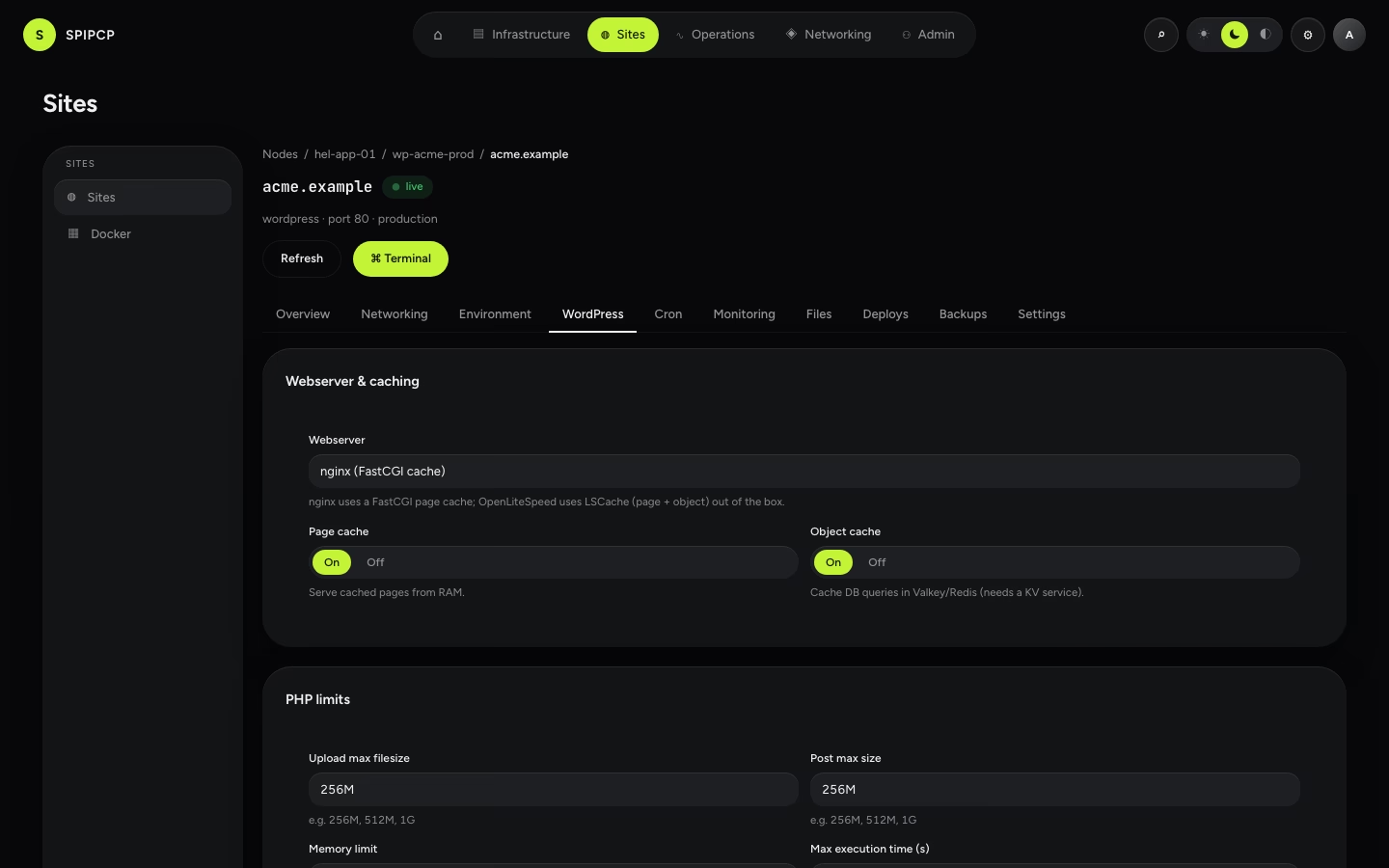
The fronting web server
How WordPress is served:
| Web server | Caching |
|---|---|
| nginx | A FastCGI page cache served from RAM — the default. |
| OpenLiteSpeed | LSCache (page and object) built in. |
Both host many sites on one instance: each site gets its own virtual host on its own internal port, rooted at its own directory, with its own PHP process running as the site's own user.
The web server belongs to the instance
Sites on one instance share its packages and its ports, so the web server is chosen when the instance is created, not per site. On an instance created to host WordPress on OpenLiteSpeed, every site on it is served by OpenLiteSpeed, and the new-site form states that instead of offering a choice the box could not honour. An instance that declared nothing — created Empty, or created before this was asked — still takes the choice here, and switching reinstalls the chosen stack and restarts the origin on Apply. The content, files and database, is untouched.
PHP limits
The distro defaults are far too tight for modern WordPress and WooCommerce. These are raised to sane values and remain tunable:
| Setting | Default |
|---|---|
| Upload max filesize | 256M |
| Post max size | 256M |
| Memory limit | 512M |
| Max execution time | 300s |
| Max input time | 300s |
| Max input vars | 5000 |
The limits are written as php_admin_value so a plugin can't quietly override them.
Always include the unit
512M, not 512 — PHP reads a bare number as bytes, so 512 is half a kilobyte while every
other gate in the chain sits at 512 MB. The form requires a unit.
An upload crosses three more gates before PHP ever sees it, and the smallest one wins. The card below this section reads all of them live and names the binding one; a second card compares what the server is enforcing against what these settings say it should be, because the two can differ on any site launched before a given limit existed. Both are covered in Upload limits.
Scheduled tasks
Scheduled tasks sets how often WordPress's schedule is run — every minute, every 5 minutes, every 15 minutes, or hourly. A real system timer runs it, so it fires whether or not the site has visitors and never sits on the request path. Details, and why no backup plugin warns about it here: Scheduled tasks.
OPcache
OPcache keeps compiled PHP in memory — the single biggest WordPress speed win, and the distro gives it far too little:
| Setting | Default |
|---|---|
| Memory | 256 MB |
| Max files | 20000 |
| Validate timestamps | On — code changes take effect immediately. Turn off for maximum production speed. |
Caching
| Cache | What it does |
|---|---|
| Page cache | Serves whole pages from RAM (nginx FastCGI cache; OpenLiteSpeed uses LSCache regardless). |
| Object cache | Caches database queries in Valkey/Redis. Needs a KV service on the instance — when there's none, it's a safe no-op. |
Apply is honest
Save & apply validates the input, persists it, and relaunches the site — the same process the first launch ran, never a faked in-place write. The status goes to launching; watch the Deploys tab for the result. If something is wrong, the site reports it instead of pretending it applied.
→ Launch a WordPress site: Sites. · The web servers on offer: What can be installed.
Rust sites
Point SpipCP at a Rust repo and get a single binary, built with cargo and supervised by systemd on its own port — a compile error fails the build, never a broken running site.
Upload limits
Four gates decide whether an upload lands — the edge proxy, the web server, PHP, and the destination directory. This is how to see which one is saying no, and how to make sure the limits shown in the panel are the limits the server is actually enforcing.