Transfer an app
Move a single site to another node or instance in one click — a backup → recreate → restore → re-point cutover that keeps the source serving until the destination is healthy.
Transfer app moves one site — its files, database, and environment — to another node or instance in a single step. It wraps the same engines already trusted elsewhere: it backs the source up, recreates the site on the destination instance, restores the backup into it, re-points traffic to the new instance, and health-checks it — then, if requested, tears the source down.
This is a per-app move. To move a whole instance (the container/VM and every site in it), including across providers, see Instance migration.
How it works
Find Transfer app on the site's Backups tab:
- Pick the destination instance (its node is where the app moves to).
- Review what carries over — the site's files, database, and environment.
- Confirm. The source keeps serving the whole time; traffic only switches once the destination passes its health check.
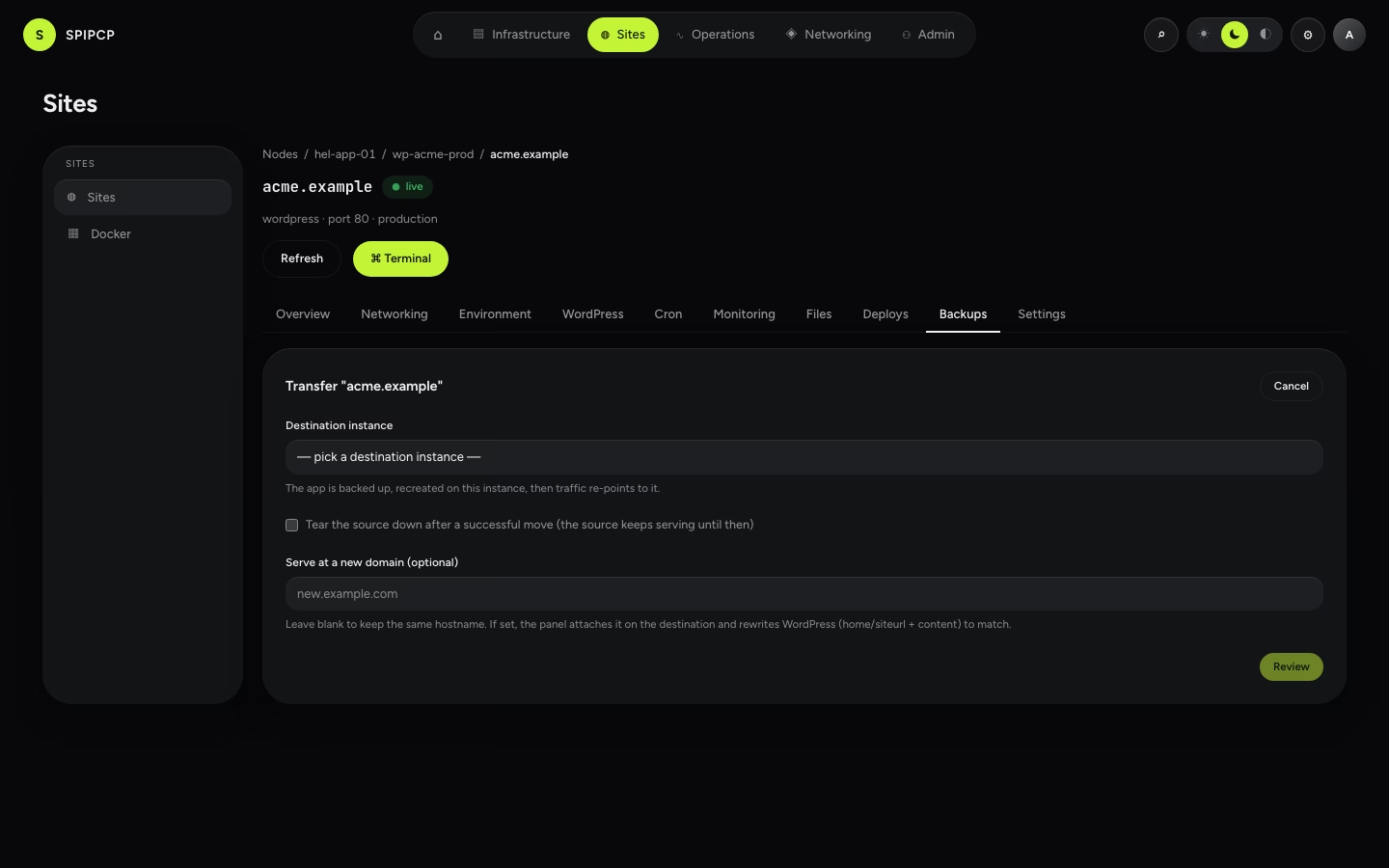
The transfer runs as one job: back up → recreate the site on the destination → restore into it → re-point traffic (cutover) → health-check → optionally tear the source down. Confirmation is required and re-checked on the server, and the whole flow is recorded so the step it reached is always visible.
A transfer is honest about failure: if anything fails before the cutover, the source stays live and the transfer is marked failed with a remedy — never a half-moved app and a dead site. The half-built destination is left clearly marked for inspection or deletion.
DNS after a transfer
The new instance is usually on a node with a different IP, so the domain's A/AAAA record must
point at it:
- The panel manages the DNS (a self-hosted zone, or a connected DNS provider account): the record is re-pointed automatically to the new node's IP.
- External DNS: the panel can't change it directly. The transfer shows the new IP with a ⚠ "Update the DNS A record to <new IP>" banner. If the source is also torn down, the "I've updated my DNS" checkbox must be ticked first — otherwise the hostname would black-hole.
Serve the moved app at a new domain
The transfer dialog has an optional "Serve at a new domain" field. Setting it moves the app and changes its URL in one step:
- WordPress stores its URL in the database (
home/siteurl) and bakes absolute links into content, so the panel attaches the new domain on the destination and then runs awp search-replace(--all-tables --precise --skip-columns=guid) plus updateshome/siteurl— so links match the new URL instead of pointing back at the old one. - Every other type (PHP, static, Node, Python, Docker) serves relative behind the edge proxy and stores no hostname, so there's nothing to rewrite — the new domain is simply attached.
The URL change runs after the move succeeds and is honest about failure: if the WordPress rewrite hits a snag, the move is still done (the app serves at the new domain) — only the content rewrite needs a retry, available from Change URL below. A backup taken first provides a rollback point.
Change a site's URL (without moving it)
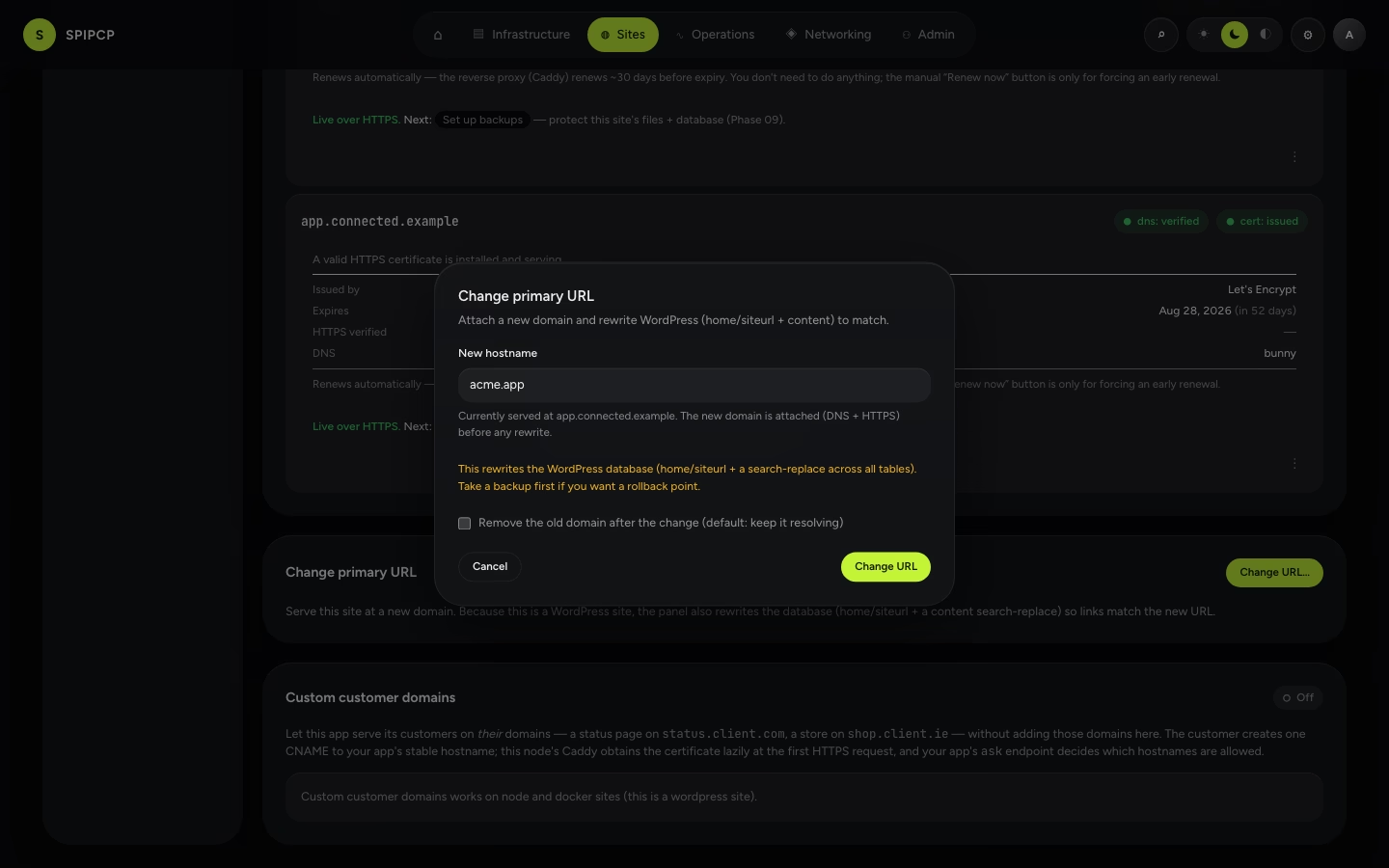
Moving an app isn't required to change its URL. On a site's Networking → Domains tab, Change URL… serves the site at a new domain in place:
- Enter the new hostname (it's attached with DNS + HTTPS first).
- For WordPress, the panel rewrites the database to match (same
wp search-replaceas above); for other types it just attaches the domain. - Choose whether to keep or remove the old domain (kept by default, so nothing 404s mid-cutover).
Transfer vs. migrate vs. clone vs. change-URL
| What it does | Where to find it | |
|---|---|---|
| Transfer app (this page) | move one site (files + database) to another instance | a site's Backups tab |
| Change URL | serve a site at a new domain in place (WordPress rewrites its content) | a site's Networking → Domains tab |
| Instance migration | move the whole instance image (OS + every site), incl. across providers | the instance workspace's Migrate button |
| Restore & clone | restore a backup in place, or into a new instance (a copy) | a site's Backups tab → Restore |
Use Transfer to relocate a single live site; Change URL to rename its domain; Migrate to move everything at once or change providers; Restore into a new instance to make a copy without touching the original.
Restore & clone
How to restore a site or instance from a backup — into the same place or a new instance (which doubles as cloning/migrating) — and how the test-restore drill proves a backup before it's needed.
Instance migration
Move a whole instance — the container/VM and every site in it — to another node or another provider, with snapshot consistency, resumable streaming, and an automatic rollback if the destination fails its health check.