Migrate storage
Move a storage box's backups to a new provider or target — restic copies the whole history to the new box, backup policies re-point to it, and the old box can be decommissioned. The history moves too, not just future backups.
When switching backup providers — a bigger box, a cheaper one, a different region — re-pointing a backup target only changes where future backups go. The history already collected stays on the old box. Migrate storage moves the history too: it copies the old box's whole repository to the new target, re-points backup policies, and offers to decommission the old box.
How it works
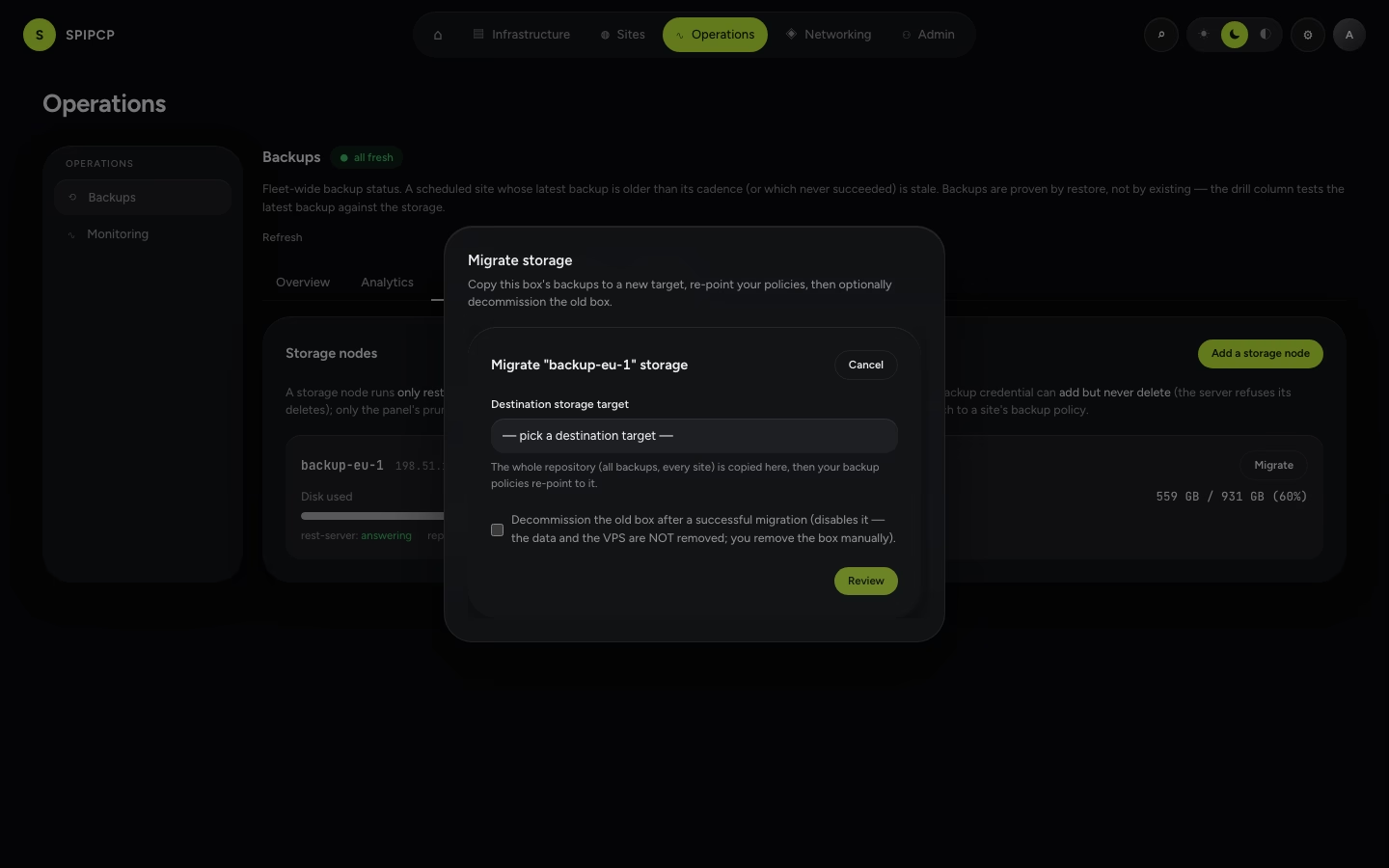
Find Migrate on a storage box in Backups → Storage nodes:
- Pick the destination — any other active storage target (another storage node, or a bring-your-own S3/SFTP target).
- Review — the panel shows how many backups copy over and how many backup policies will re-point.
- Confirm. The migration runs as one job: copy → re-point → optionally decommission.
The whole flow is recorded so the step it reached is always visible, and confirmation is required and re-checked on the server.
1. Copy the whole repository
A storage box holds one restic repository; individual sites are distinguished by tags inside it.
So migrating is one restic copy of the whole repo — every site's snapshots, deduplicated at the
destination — not a per-site loop. The copy runs on the panel host (it reads the old repo and writes the
new one), so the sites' instances aren't involved.
2. Re-point backup policies
Once the copy verifiably succeeds, every backup policy that pointed at the old box is re-pointed to the new one in a single step — so future backups land on the new box too, alongside the history that just moved.
3. Decommission the old box (optional)
Ticking "Decommission the old box" disables the old target so it stops being selectable.
Decommissioning only disables the old box in the panel — it never deletes backup data and never touches the VPS. Removing the actual server is a manual step, done once the new box is confirmed working. Until then, the old box's data is left intact as a fallback.
Honest about failure (history is never orphaned)
The re-point happens only after the copy succeeds. A restic copy only adds to the destination —
it never touches the source — so if the copy fails, the migration is marked failed with a remedy and
everything still points at the old box: the history and future backups both stay where they
are. A backup policy never ends up pointing at an empty new box.
A note on S3-to-S3 across different providers
restic shares one set of S3 credentials across both repositories during a copy, so it can't copy directly between two different S3 providers with different keys. The panel detects this and refuses the migration up front with a clear remedy. The options:
- Migrate via a self-hosted (rest) storage node or an SFTP target on one side — these carry their credentials in the repository URL, so there's no collision (the common upgrade paths — box → box, box → S3, S3 → box — all work directly).
- Or copy the bucket with the S3 provider's own tooling, then re-point the policies by editing them.
A migration within the same S3 account (same keys, e.g. a new bucket) works directly.
Migrate storage vs. the other moves
| What it moves | Where to find it | |
|---|---|---|
| Migrate storage (this page) | a storage box's backup history to a new target | Backups → Storage nodes → Migrate |
| Transfer an app | one site (files + database) to another instance | a site's Backups tab |
| Instance migration | a whole instance (OS + every site), incl. across providers | the instance workspace's Migrate button |
Bring your own storage
Send backups to an S3 bucket (AWS, Cloudflare R2, IONOS, Hetzner) or an SFTP server. Set the credentials, test the connection, and turn on provider object-lock where it's supported.
Append-only & immutability
The security story behind backups — two separate credentials (an add-only backup lane and a delete-capable prune lane), how rest-server enforces append-only, where provider object-lock fits, and the one gap self-hosted object stores still have.