Instance migration
Move a whole instance — the container/VM and every site in it — to another node or another provider, with snapshot consistency, resumable streaming, and an automatic rollback if the destination fails its health check.
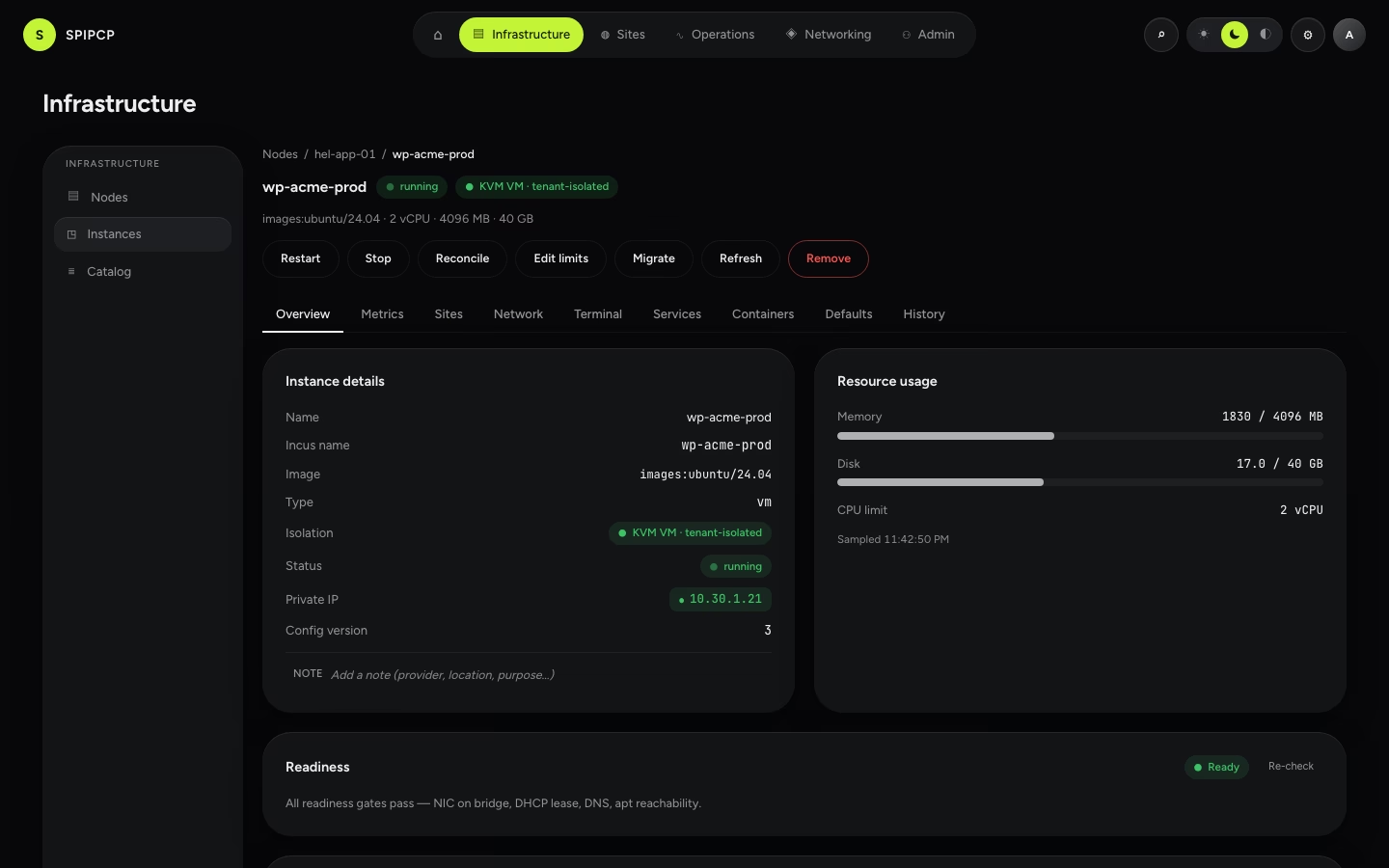
Instance migration moves a whole instance — the container/VM image and every site in it — from one node to another, including across providers (VPS → dedicated, provider A → provider B). It is the superset of the per-app Transfer app: a transfer moves one site by backup-and-restore; a migration ships the whole image via the reserved export → encrypt → stream → import path, then re-maps the network and cuts traffic over.
A migration re-points live traffic and can tear the source down. Every migration asks for confirmation, and the confirmation is re-checked on the server — the source keeps serving until the destination passes its health check.
Migrate vs. Transfer app — which one?
| Transfer app (per-site) | Instance migration (this page) | |
|---|---|---|
| Moves | one site's files + database | the whole instance image (OS + every site) |
| How | restic backup → restore into a new instance | export → encrypt-in-panel → stream → import |
| Where it lives | a site's Backups tab | the instance workspace's Migrate button |
| Network | re-points that site's routes | re-maps the NIC/IP/topology + every site's routes |
Use Transfer app to move a single site between instances; use Migrate to move everything at once, or to move an instance to a different provider.
The three scopes
The panel derives the scope from the source and destination automatically:
- Same-class — source and destination are the same topology class (e.g. both VPS). Only the network layer changes: import the image, re-map the NIC/IP, re-point routes, cut over.
- Cross-class — the destination class differs (e.g. VPS → dedicated with a routed IP block). On top of same-class, the migration reconciles topology — the address mode (NAT ↔ routed) and whether the instance can carry a routed IP — against the destination class before the move.
- Cross-provider — a different provider, possibly a different class and network fabric. The superset: a capacity and architecture precheck on the destination, resumable streaming for a multi-GB image over a flaky cross-provider link, and a cutover plan with rollback.
Consistency: snapshot vs. stop
A live root filesystem copy is torn (files change mid-read), so a migration never exports a running instance raw. The source's consistency mode is chosen up front:
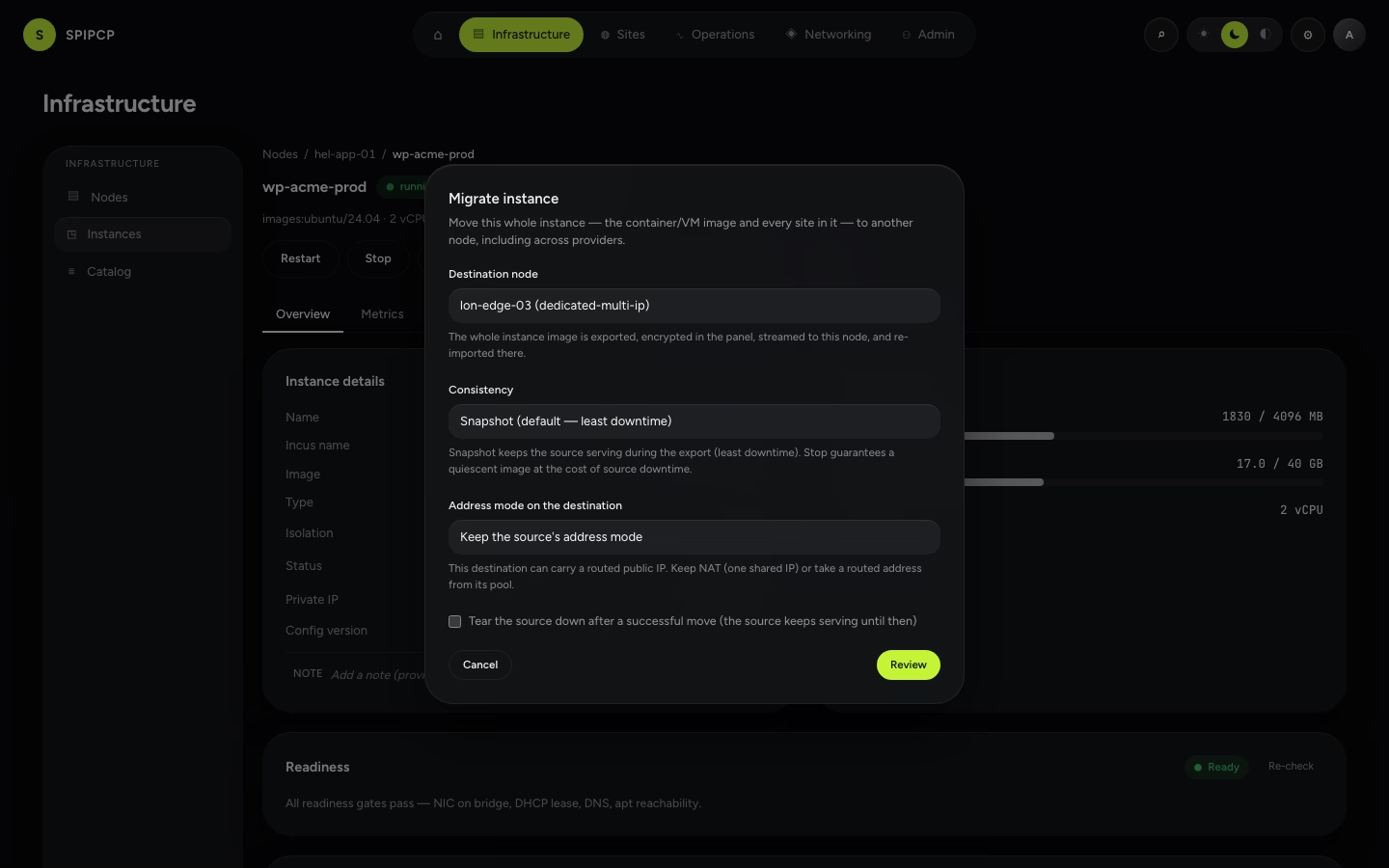
- Snapshot (default) — snapshot the source, export the snapshot. The source keeps serving during the export — least downtime.
- Stop — stop the source, export, then restart it. A guaranteed-quiescent image at the cost of source downtime — the strict case.
How a migration runs
- Precheck. Validate the source against the destination class (topology) and, for a cross-provider move, the destination's capacity and architecture. An illegal or over-capacity destination is refused up front — before anything is exported, so the source is never left half-migrated.
- Snapshot / stop the source for a consistent image.
- Export the image out of the source node and encrypt it in the panel (the same envelope a backup uses — the key never reaches either node).
- Stream the encrypted image to the destination, resumably: a dropped link picks up from the last acknowledged chunk, not from zero.
- Import the image on the destination node — the instance materializes there.
- Re-map the network: assign the destination's NIC/IP (re-mapping the address mode if the class differs), re-point every site's routes, and update DNS where the panel owns the zone.
- Cutover — start the destination and health-check it; traffic flips only on a pass.
- Teardown (optional) — tear the source down only after a proven-healthy cutover.
Honest about failure (L1). Any failure before cutover lands the migration failed with a remedy and the source untouched (still serving). If the destination fails its health check at cutover, the migration rolls back automatically — traffic flips to the still-serving source and the half-built destination is torn down. The source is never torn down until the destination is proven.
DNS at cutover
A whole instance can host many sites across many zones:
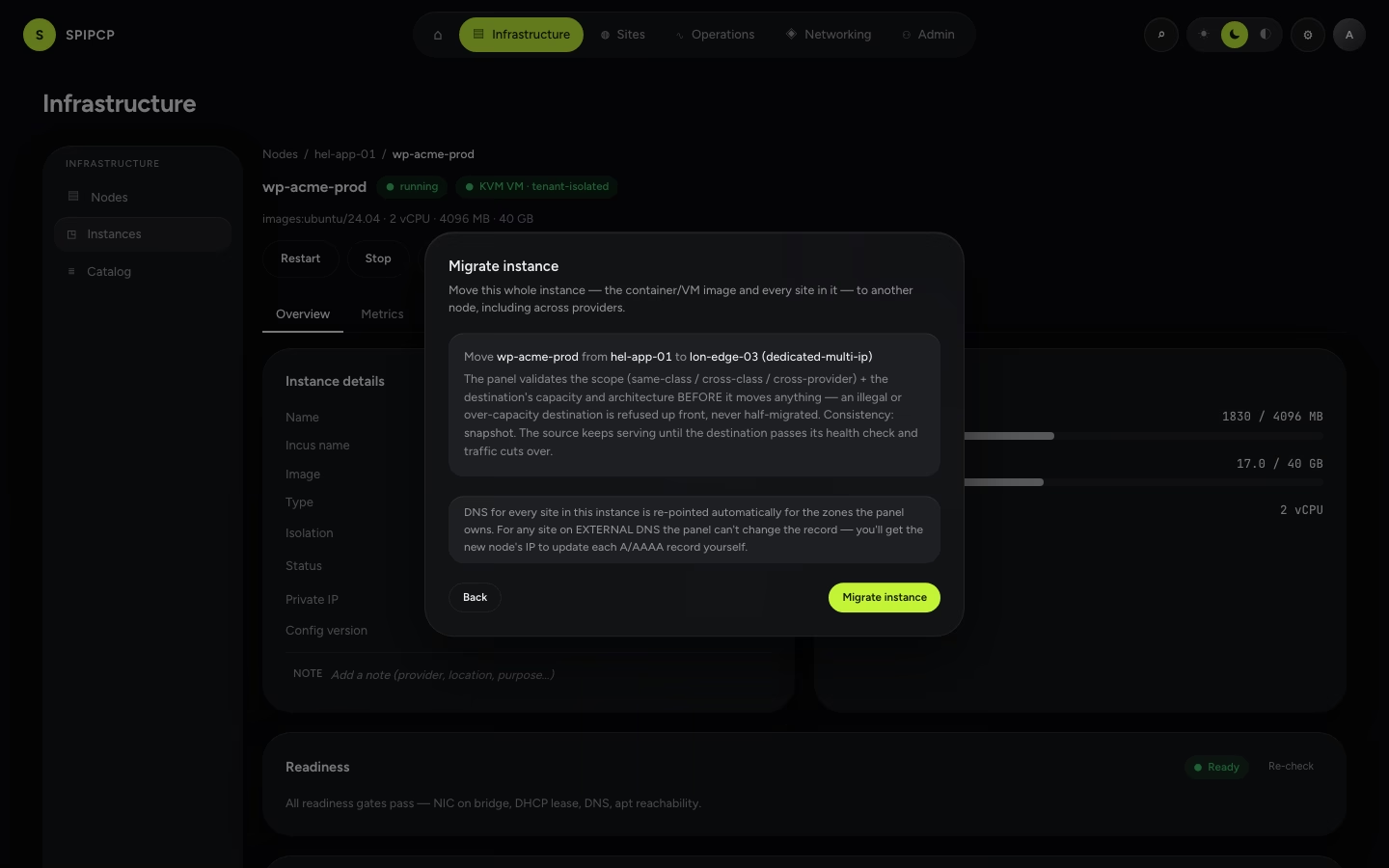
- The panel manages the zone (a self-hosted zone or a connected DNS provider account): the record is re-pointed automatically to the new node's IP.
- External DNS: the panel can't change it directly — the new node's IP is shown to update each
A/AAAArecord manually. If the source is also torn down, the "I've updated external DNS" checkbox must be ticked first, or those hostnames would black-hole.
Rollback
Rollback is automatic on a failed cutover health-check — the source keeps serving the whole time, so traffic stays on it until the destination is proven. While a migration is in flight the workspace shows a Roll back button; it surfaces this honestly (there is no separate "cancel mid-stream" — that is a follow-up that needs a worker control hook the engine does not yet wire). To return to the original node after a successful migration, start a fresh migration back.
Starting a migration
In the instance workspace, click Migrate (admin only):
-
Pick the destination node (any other online standard node — a nameserver/storage box can't host workloads), the consistency mode, and — for a destination that can carry a routed IP — the address mode.
-
Review the move: source → destination, the scope the panel will derive, and the DNS handling.
-
Confirm. A live progress view then shows the state, the bytes-streamed bar, and the current step as the migration runs — with the Roll back button described above.
Live cross-node and cross-provider migrations (including a forced mid-stream resume and a forced rollback) are validated on real VPSes as a batched operator run [REMOTE-VPS] — the orchestration, the state machine, the resume cursor, and the topology/capacity prechecks are unit- and db-proven offline.
Transfer an app
Move a single site to another node or instance in one click — a backup → recreate → restore → re-point cutover that keeps the source serving until the destination is healthy.
Monitoring
SpipCP watches the fleet and reports when something goes down — and again when it recovers — with uptime checks, certificate-expiry alerts, and email or webhook notifications.